
Tags
Tags are a layer of classification that tessoa keeps for you. Put a colored tag on a file or folder, then click that tag in the sidebar, and everything carrying it comes together in one list — without actually moving anything into some "important" folder.
Tags never change the files themselves; tessoa keeps them in a config folder of its own, described under where tags are stored. Files under one tag can sit on different drives, in different folders. Rename or move a file inside tessoa and its tags come along.
What tags can do
- Put one or more tags on a file, or on a whole batch at once.
- Show colored dots next to filenames in every view (up to 3).
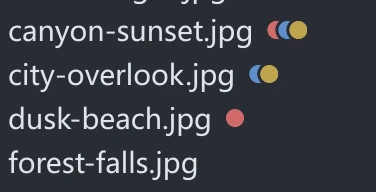
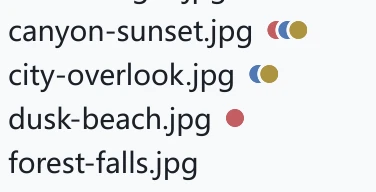
- Create, rename, recolor, nest, and delete tags in the sidebar.
- Click a tag in the sidebar to see every file that has it.
- Find files by tag name with the sidebar quick search (Alt+F).
A fresh install already has seven tags named after their colors: Red, Orange, Yellow, Green, Blue, Purple, and Gray. They are just empty tags with a color picked; rename them to whatever you actually use.
Tagging files
- Select one or several files. To pick several, check them with Space.
- Right-click → Tags → click the one you want.
- With several files selected: as long as one of them does not have the tag yet, they all get it; only once they all have it does clicking clear it.
- The menu stays open, so you can click a few tags in a row. Click elsewhere to close it.
Right-clicking empty space gives you Tags for This Folder instead, which tags the folder you are standing in rather than anything inside it. All three platforms work this way.
Dragging files onto a sidebar tag
Select the sidebar's Tags page, then drag files from the file area onto a colored tag within it. A whole batch can be tagged at once; the files themselves are not moved or copied.
Managing tags in the sidebar
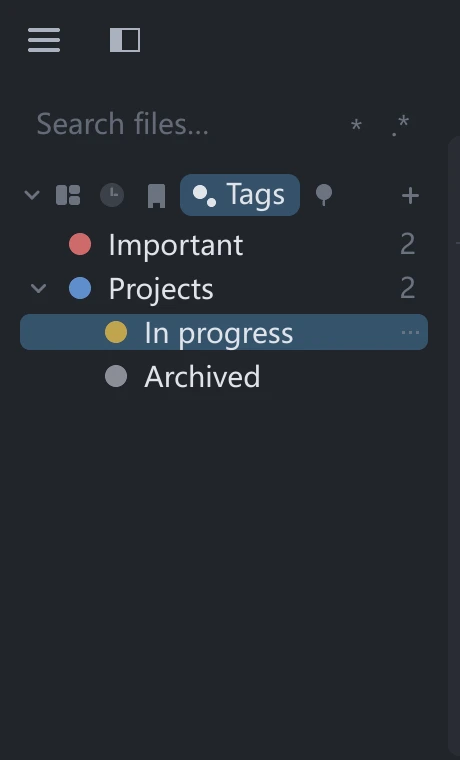
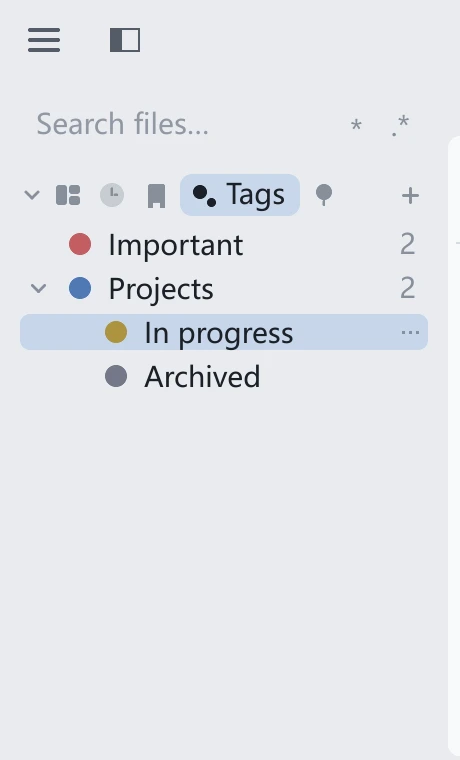
Select Tags in the sidebar tab strip to manage colored tags. Each row shows its file count on the right. To keep bookmarks or another page visible at the same time, create stacked sidebar panes or drag the Tags component page into the main area; see Sidebar & component pages.
| To do this | Do that |
|---|---|
| Create a tag | Select Tags and click + at the right end of its tab strip |
| Create a child tag | The ⋯ at the end of a row → New Child Tag |
| Rename | Double-click the name, or ⋯ → Rename |
| Change color | Click the colored dot in front of the name, or ⋯ → Change Color… |
| Reorder or nest | Drag a row: onto the middle of another row makes it a child, between two rows just reorders |
| Delete | ⋯ → Delete Tag. Child tags survive; they move up a level |
After deleting, an undo prompt appears in the footer, so a mis-click is fixable right away.
Seeing everything under a tag
Click a tag in the sidebar and a tab opens listing every file carrying that tag (and any tags nested under it), no matter which folder they are actually in.
- These are still your real files: preview them, open them, right-click them, all as usual.
- Renaming the tag later changes nothing; the list keeps working.
How it relates to search
The sidebar quick search (Alt+F) looks for two things at once:
- File names.
- Tag names: match one and it lists every file under that tag.
A single Chinese, Japanese, or Korean character is enough to search on; Latin-script queries generally need two letters or more. When a result came from a tag, its tooltip says Matched tag and names it, so you can tell how it was found.
Where tags are stored
Tags are not written into the files themselves: tessoa uses neither NTFS alternate data streams nor extended attributes. It keeps an index in its own config folder instead, one entry per path, recording which tags that path carries. Behavior is then identical on all three platforms and lookups stay fast; file modification times are left alone, and copying or backing up a file with some other tool leaves its tags alone too.
The index file is tags.ini, and it sits with the rest of the configuration:
| Platform | Folder |
|---|---|
| Windows | %APPDATA%\tessoa\ |
| macOS | ~/Library/Application Support/tessoa/ |
| Linux | $XDG_CONFIG_HOME/tessoa/, or ~/.config/tessoa/ when that variable is unset |
On Windows, paste %APPDATA%\tessoa into the File Explorer address bar to open that folder. The four other files in it are config.ini (preferences), session.ini (last window, tabs, and splits), layouts.ini (named layouts), and activity.ini (activity history). All of them are plain text, so any text editor opens them.
Once you put a tag on something, tessoa writes tags.ini at the next idle moment rather than on exit, so tags you just applied survive even if the program is killed. Window and tab state (session.ini) is the one thing written on exit.
Running without installing uses the same data. Wherever tessoa.exe sits, it reads and writes %APPDATA%\tessoa for the current Windows user. Copy that file to a USB stick, run it on another computer, and your tags, settings, and layouts do not come along; on one computer, running it portable and running it installed share the same data.
Backing up and migrating tags
- Quit tessoa. On exit it writes window and tab state into
session.ini, so what you copy afterwards is the complete set. - Copy the whole config folder wherever you keep backups. To keep the tags alone,
tags.iniis the only file you need. - To restore on another machine: run tessoa there once and quit, so the folder gets created, then copy your backup files over it.
Tags are recorded by absolute path. If the drive letter or folder layout differs on the new machine (D:\Projects\ before, E:\Work\Projects\ now), the tags you copied no longer match those files, and they will not show up in the tag list. Moving a folder structure across unchanged is fine.
Changed paths do not mean re-tagging everything. tags.ini is plain text, and every record starting with f = ends with the full path of one file. Replace the leading part of those paths with the new one in a text editor, then start tessoa. Keep a copy of the original before you do.
A few things to know
- At most 3 dots are shown per row, so extras are not visible (the most recent ones win).
- Files you send to the Recycle Bin from inside tessoa keep their tags if you undo the delete.
- On macOS, Import Tags from Finder in the Maintenance group reads Finder's tags in. It goes one way only; tessoa never writes back to Finder.
If you rename, move, or delete files from another program such as File Explorer or Finder, tessoa's tags can no longer find them, and those files stop showing up in the tag list. Run Clean Up Stale Tag References in Settings to tidy up.