
Age badges
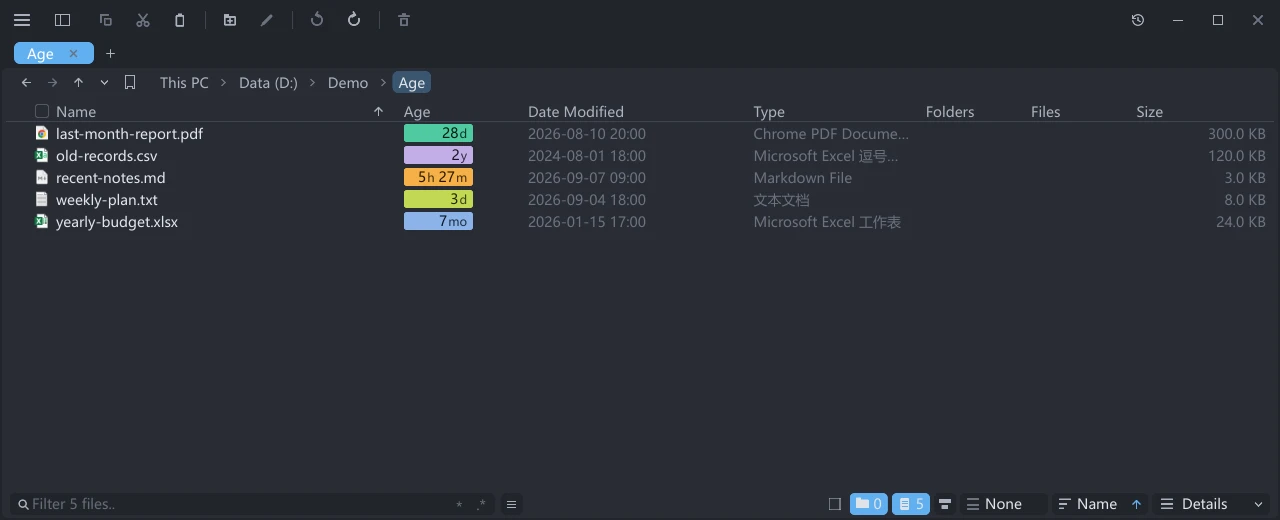
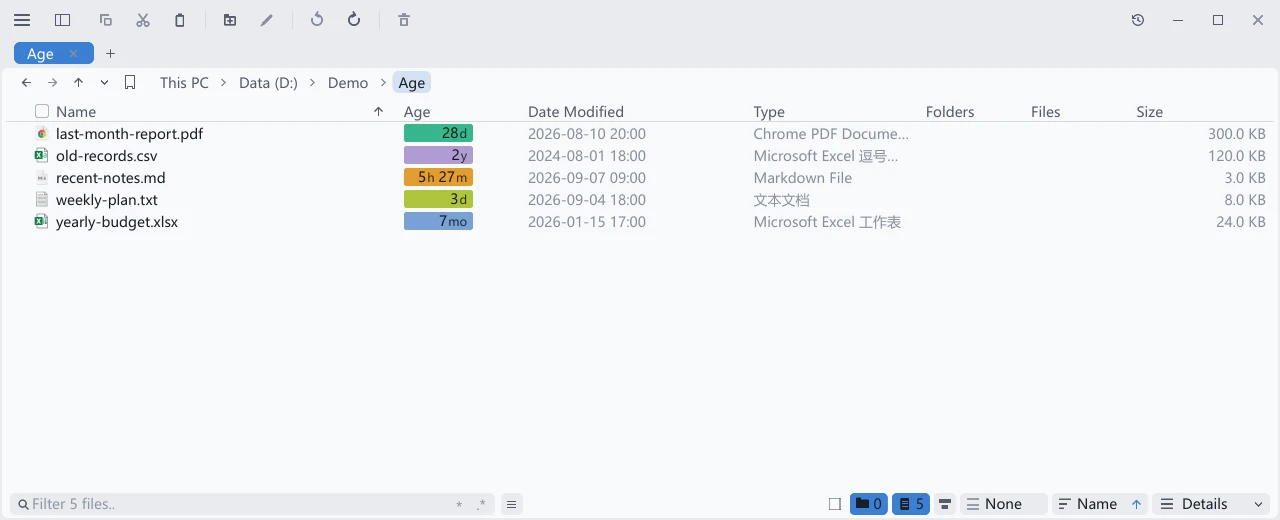
Age is a column in Details that shows how long ago a file was last modified. Its text and color help identify recent changes in a long list; the Date Modified column still provides the exact time.
Display and sorting
On a fresh installation, Age is visible immediately to the left of Date Modified. It is not part of the drive list in This PC.
| Operation | How |
|---|---|
| Show or hide | Right-click a column header and check or uncheck Age. The same control is available under Settings → View → List view columns |
| Reorder | Drag its column header, or change the order in List view columns |
| Resize | Drag the column divider; double-click it to fit the contents |
| Sort by modification time | Click the Age header; click again to reverse the direction. It uses the same sorting as Date Modified, and the sort arrow appears on the Date Modified header |
If the column is too narrow, badge text may disappear; widen the column to restore it. Changing column visibility, order or width does not modify files.
When upgrading with an existing column configuration, Age is appended to the end of the column order. It may require horizontal scrolling to find. Drag it next to Date Modified without resetting the other columns.
Time notation
The Chinese interface uses Chinese units; other interface languages use English abbreviations. The time updates as it passes.
| Time since modification | Chinese example | English example |
|---|---|---|
| Less than 1 minute | 刚刚 | now |
| 1–59 minutes | 6分 | 6m |
| 1 hour to less than 24 hours | 2时9分; 3时 on the hour | 2h 9m; 3h on the hour |
| Days | 29天 | 29d |
| Months | 7个月 | 7mo |
| Years | 1年 | 1y |
Under 24 hours, the badge uses elapsed hours and minutes, including across midnight. From 24 hours onward, days follow the local calendar. Months and years are approximate durations, using about 30.44 and 365.25 days respectively. A modification time in the future is shown as now.
Adjust badge appearance
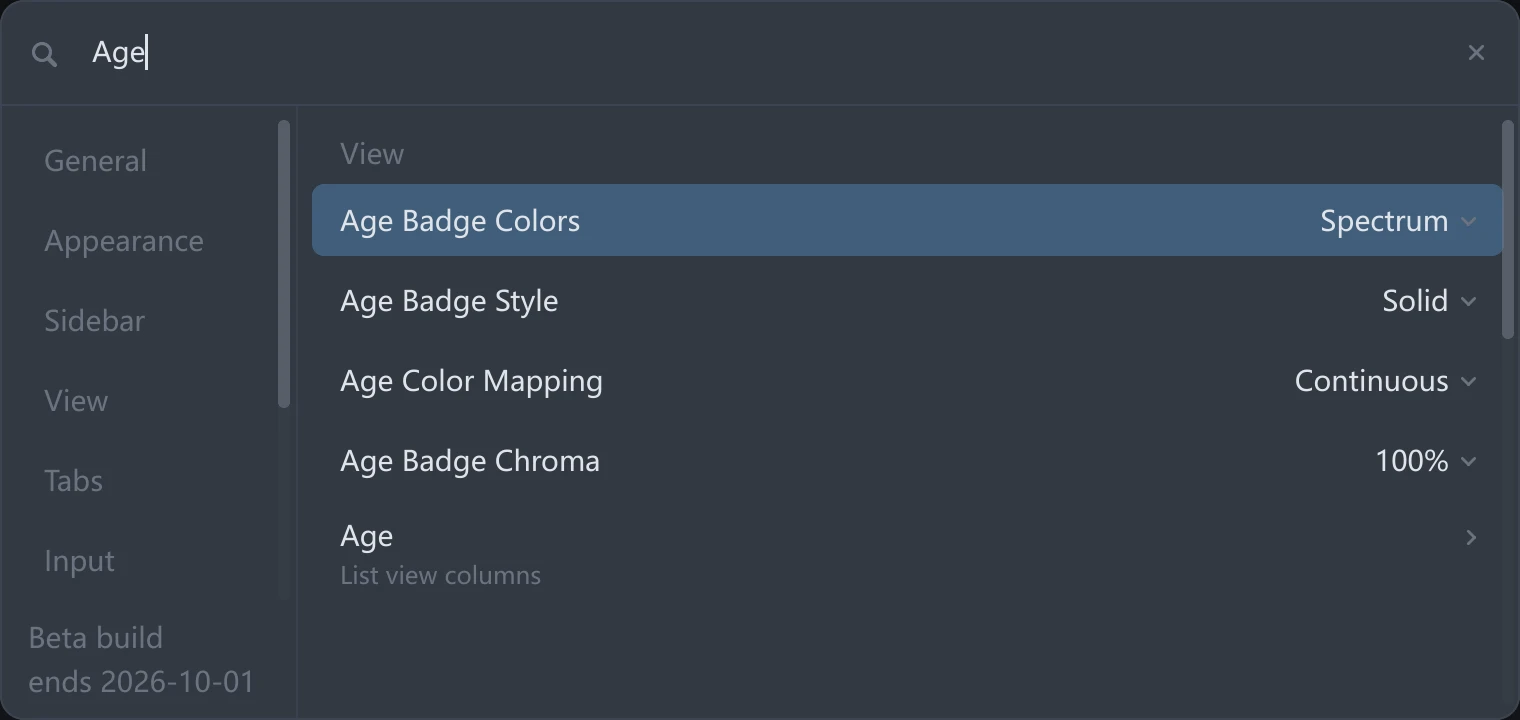
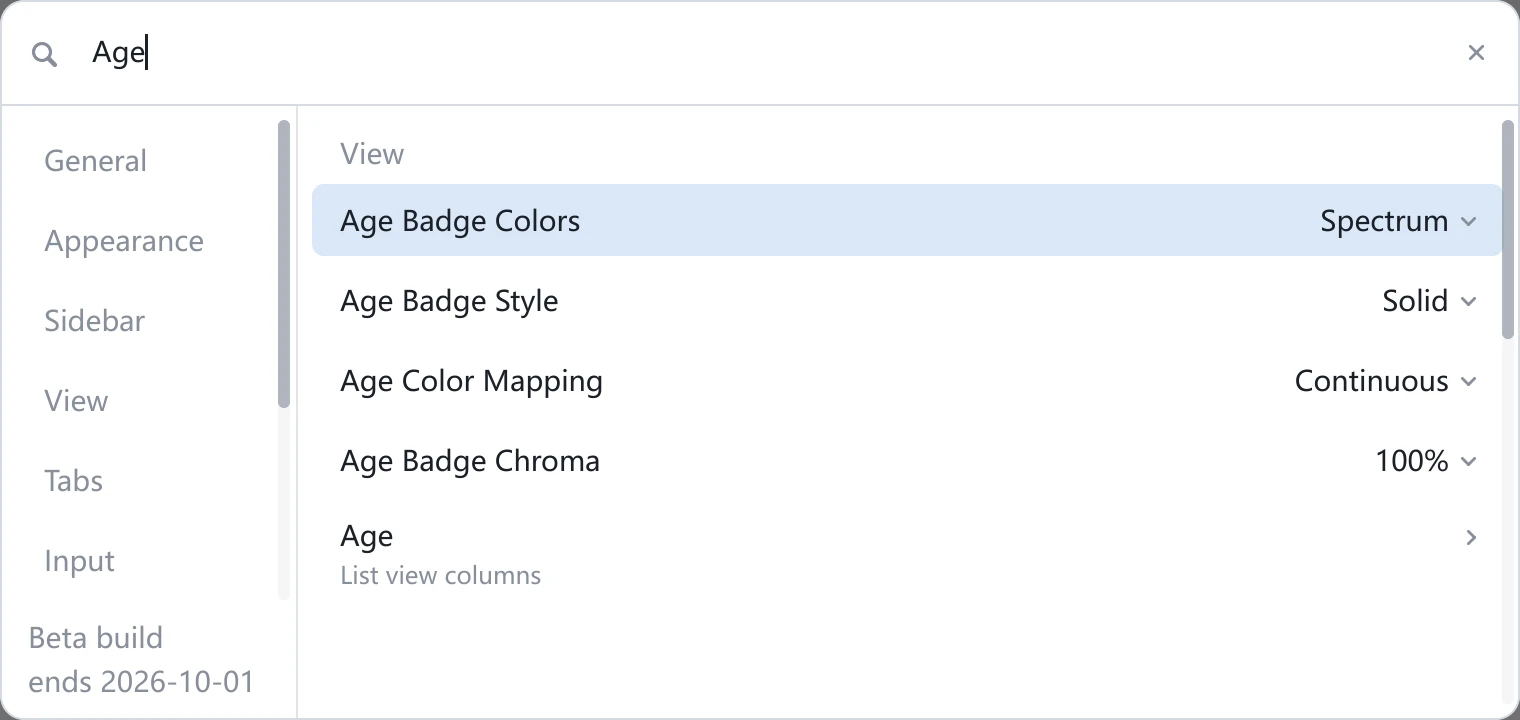
Open Settings → View to change the following four settings. Changes take effect immediately and are shared by all windows; use the column-header menu to show or hide the column itself.
| Setting | Values and effect | Default |
|---|---|---|
| Age Badge Colors | Five ways to show age with color, listed below | Spectrum |
| Age Badge Style | Solid fills the badge; Tinted uses a faint background and outline; Text Only keeps just the colored text | Solid |
| Age Color Mapping | Continuous changes color smoothly with time; Stepped keeps the same color within each time range | Continuous |
| Age Badge Chroma | 40%, 70%, 100%, or 130%; lower values make colors less vivid | 100% |
| Colors | How they change |
|---|---|
| Spectrum | Recent changes start in warm orange and yellow, moving through green, cyan, blue and purple with age |
| Spectrum, Flat | Keeps the spectrum's hue changes with more even lightness |
| Green to Blue | Moves from green to blue as files get older |
| Saturation | Uses the current theme's accent hue, with more vivid color for newer changes |
| Quiet | Recent changes have a hint of green; older files are nearly gray |
Stepped uses six elapsed-time ranges: under 1 hour, 1 hour to under 1 day, 1 day to under 7 days, 7 days to under 30 days, 30 days to under 1 year, and older. Colors indicate modification age, not file errors.