
Tabs & split panes
Tabs let you keep several folders open in one window. When you need to see two of them at once, the window can be split into panes. This page covers how tabs, splits, and multiple windows fit together.
Tabs
| Action | Default (Windows / Linux) |
|---|---|
| New | Ctrl+T, or + in the tab bar |
| Close | Ctrl+W, or middle-click that tab |
| Next / previous | Ctrl+Tab / Ctrl+Shift+Tab |
On macOS new and close are usually ⌘+T and ⌘+W; tab switching stays on Ctrl+Tab so it does not collide with the system app switcher.
Tab widths fit their content by default, so short names take less space. Under Settings → Tabs, Tab Width offers Full Name or Shrink, and Tab Overflow controls wrapping or horizontal scrolling when the row fills. Upgrading to 0.24.0 switches existing configurations to Full Name once; choose Shrink again to restore the earlier behavior.
Inactive tabs have an outline. Open the Appearance editor in Settings to adjust Tab Outline and Tab Outline Width, which default to 45% and 1 px. Set the outline to 0 to turn it off. Pane corners follow Corner Roundness on the same page.
Which folder a tab opened with Ctrl+T or the + starts in is set by New Tab Folder: Match Current Tab, Home, or a path you specify. See Settings overview. Things like Open in New Tab already carry a destination and are unaffected.
Right-clicking a tab
Right-clicking a tab opens a menu in two groups:
| Menu item | What it does |
|---|---|
| Bookmark this tab | Saves the folder this tab has open, see Bookmarks |
| Bookmark all tabs… | Creates a bookmark folder holding every tab in this pane |
| Close Tab | Closes the tab you right-clicked |
| Close Other Tabs | Leaves only this one |
| Close Tabs to the Left / Close Tabs to the Right | Closes everything on that side |
A divider separates the first two from the last three: constructive actions and destructive ones are kept apart. All of them act on the tab you right-clicked, not on the one that is currently active.
In Vim mode these are gc, gC, gH and gL, see Vim mode.
Right-clicking the empty part of the tab bar raises a different menu holding New preview tab (see Preview tab) and New terminal tab ▸ (see Terminal tab).
Closing the last tab returns you to the Start Page. It does not quit the app.
Open in a new tab
Anywhere a single click would send the current tab somewhere else, you can ask for a new tab to carry it instead and leave this one where it is. There are five ways:
| How | Where it works |
|---|---|
| Right-click → Open in New Tab | Folders in the file list. Tick several folders and they all open at once, in the order they appear in the list; the entry does not show up for a selection of files only |
| Middle-click | Folder rows in the list, folder rows in the sidebar, a breadcrumb segment, and the back / forward / up buttons in the nav bar |
| Ctrl+Enter | From the keyboard: opens the folder the cursor is on |
| Alt+Enter | Use it instead of Enter after typing a path in the address bar, see Working with files |
go | Vim mode, in both the file list and the sidebar, see Vim mode |
Middle-clicking a row acts on the row under the pointer only, not on your ticked selection — middle-click points at exactly one thing. Middle-clicking back / forward / up means "open that location in a new tab": the current tab's own history stays where it is and does not step back with it.
Where the new tab is inserted, and whether you are taken to it, come from New Tab Position and Focus New Tab When Opened in Settings. See Settings overview.
A small dot on a tab means you have not looked at that one yet.When a tab opens without focus, your current view does not move at all, and the dot is what tells you a tab is waiting. Switch to it and the dot goes away. If the tab bar is set to scroll and the row is full, the new tab is scrolled into view — but the focus still does not move.
Sidebar search results used to be the exception — clicking one opened a new tab, the only place in the whole app where left-click and middle-click meant the reverse of everywhere else. They now behave like everything else: clicking changes the current tab, middle-clicking opens a new one.
Right-clicking a search result gives you a "what to open × where to open it" grid:
| What you hit | Menu entries |
|---|---|
| A folder | Open in Current Tab, Open in New Tab, Open Containing Folder in Current Tab, Open Containing Folder in New Tab |
| A file | Open (in its default program), Open Containing Folder in Current Tab, Open Containing Folder in New Tab |
Files lose the "open this thing itself as a folder" column — a file cannot be a folder — so those two cells become a single Open at the top instead: when you have searched out a file, opening it is the usual intent.
Whether a new tab opened from a search result gets focus follows Focus New Tab When Opened, as everywhere else.
Folder rows in the sidebar and breadcrumb segments have a small context menu of their own with five entries: Open, Open in New Tab, Add bookmark (Edit bookmark once saved, see Bookmarks), Copy Path, and Tags ▸. Only harmless actions live here — these rows often point at a parent folder, a system location, or a whole drive, where one mis-click would cost far more than the navigation it saves.
Splitting the window
There is one way to do it: drag a tab to the edge of the window and let go.
- Open two tabs first.
- Press and hold one of the tab titles and drag it toward an edge.
- Drag to the top, bottom, left, or right edge. That half lights up, and you let go there.
Afterwards, drag the divider in the middle to change how wide each side is. The same move splits further, giving you more panes.
Double-click the divider and the two sides swap wholesale: what was on the left slides to the right and vice versa, while the divider itself stays put. Each side keeps its tabs, its selection and its scroll position — only the position changes.
To start from a layout template, select the sidebar's Layouts page, then click + at the right end of its tab strip → New from Template…. Choose a 1–4 pane arrangement; see Layouts & workspaces.
Sidebar component pages can also be dragged into main-area panes alongside file tabs. Drag a component tab back to the sidebar or close it to return the page. Stacked panes inside the sidebar are arranged separately; see Sidebar & component pages.
Which pane an action applies to
- Whichever pane you click is the one your shortcuts, copies, and deletes apply to. The quick bar buttons and the right-click menu land in the same place.
- When several panes each hold a selection, the selected and checked rows in the panes without focus are drawn dimmer, so which side this Delete or Ctrl+C reaches is visible at a glance. The hover highlight does not dim with them: it marks the row the pointer is on.
- Panes are independent: their own tabs, their own scroll position, their own view.
- Close the last tab in a pane and it returns to the Start Page. To merge panes back together, drag its tab onto another pane.
Tab group numbers
The stack of tabs in one pane is a tab group. Once the window is split, the left end of each tab bar carries a number badge, numbered in layout order (top to bottom, left to right), with a tooltip reading Tab group N.
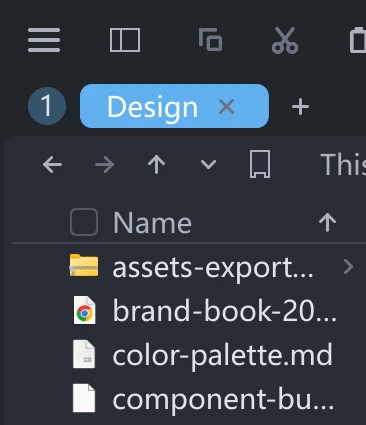
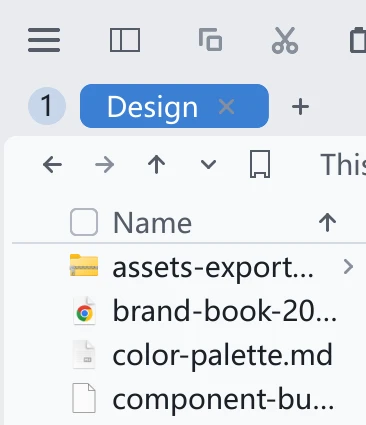
The badge appears in two cases: the window has two or more tab groups, or a preview tab is following one of this window's groups — the "Following group N" on such a tab's binding chip means this number. A preview tab in another window counts too.
Its shape is yours to choose: open Settings, find Tab Group Number in the Tabs group, and pick between Circle Badge (the default), Keycap and Corner Mark. See Settings overview.
The number is drawing order, not identity. Change the split or close a window and the same group may well get a different number. A preview tab follows the group itself rather than the digit; when a number really does change, the badge flashes a ring to tell you.
Dragging tabs elsewhere
Besides splitting at an edge, a tab can go to several places:
| Drop it | Result |
|---|---|
| Another pane in the same window | The tab moves there |
| A window edge | A new pane splits off |
| Another tessoa window | That window takes the tab |
| Empty desktop | It tears off into a new window |
Ctrl+N opens a new window directly. Every window shares the same tags, bookmarks, and layouts, so a change in one applies everywhere.
Saving a split
Once the split is arranged the way you like, save it from the sidebar as a layout. One click brings the whole side-by-side setup back next time.
Enable Settings → Sidebar → Open Tabs to list all tabs in this window by pane in the sidebar. Click a row to focus it, making it easier to find open folders when many tabs or panes are in use.
Layouts & workspaces · Bookmarks · Keyboard shortcuts · Vim mode