
Quick bar
The quick bar is a strip across the top of the window holding two kinds of item. Favorites are your bookmarks: click one and you go to that folder. Quick buttons are actions such as Copy and Paste: click one and it runs. This page covers how to use what is on the bar, how to reorder it, and where you decide what it holds.
The quick bar is on by default. Clicking a button on the bar does the same thing as pressing its shortcut, and the favorites on the bar are the same data as the sidebar's Bookmarks section. It adds no abilities of its own; it gives those two things one more entry point.
The two halves of the bar
Out of the box, the left half of the bar is a row of quick buttons and the right half is your bookmarks.
| Section | What it holds | What sets the order |
|---|---|---|
| Quick buttons | Copy · Cut · Paste │ New Folder · Rename │ Undo · Refresh │ Delete to Trash | You do, see Rearranging what is on the bar |
| Favorites | The bookmarks and bookmark folders at the top level of the tree | The bookmark tree, which you arrange in the sidebar's Bookmarks section |
While the two sections share one strip, a separator sits between them automatically. The factory buttons are grouped by separators too, and Delete to Trash comes after the last of them.
Hovering a quick button shows its name and the shortcut currently bound to it. A greyed-out button still shows that tooltip.
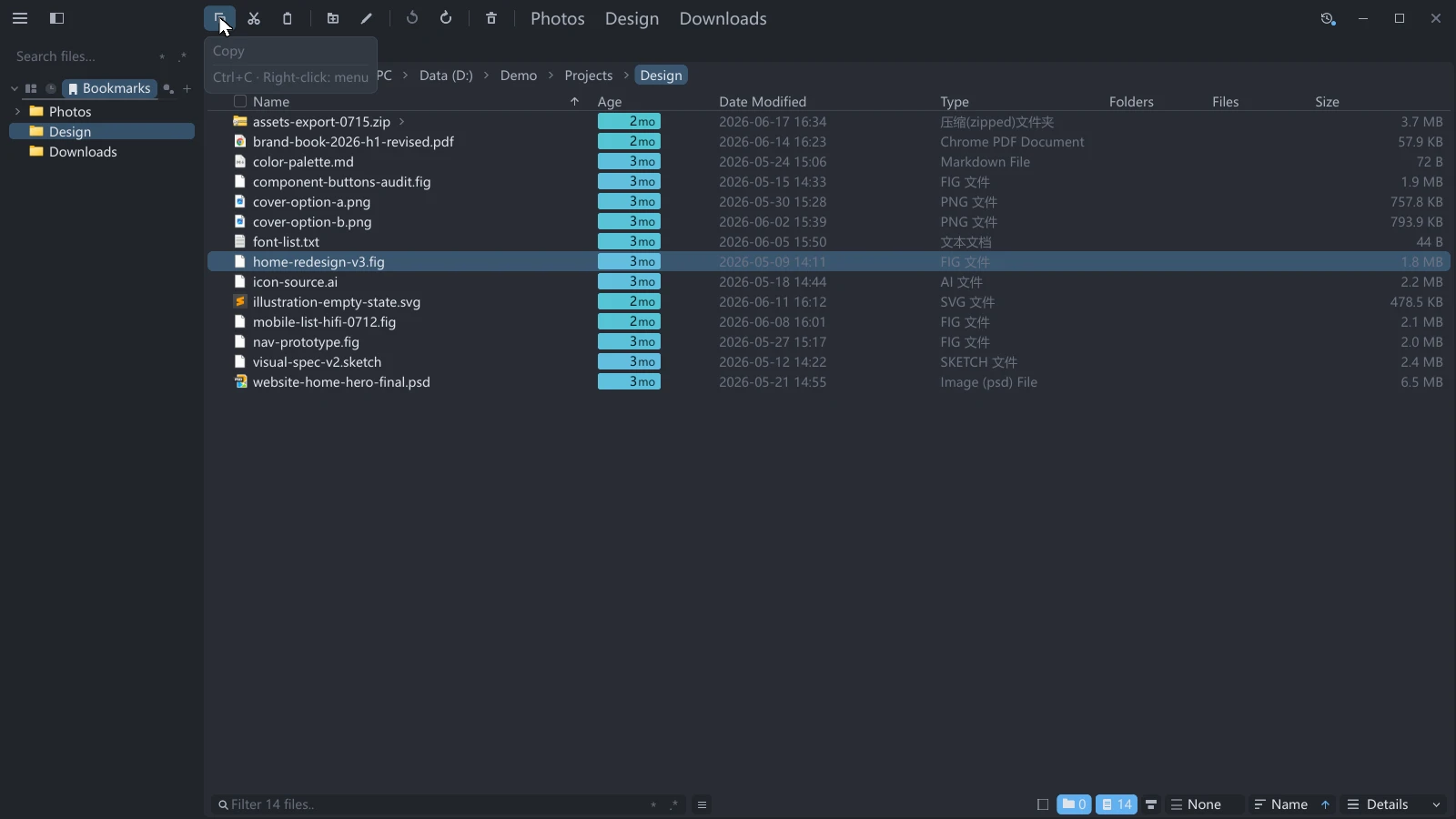
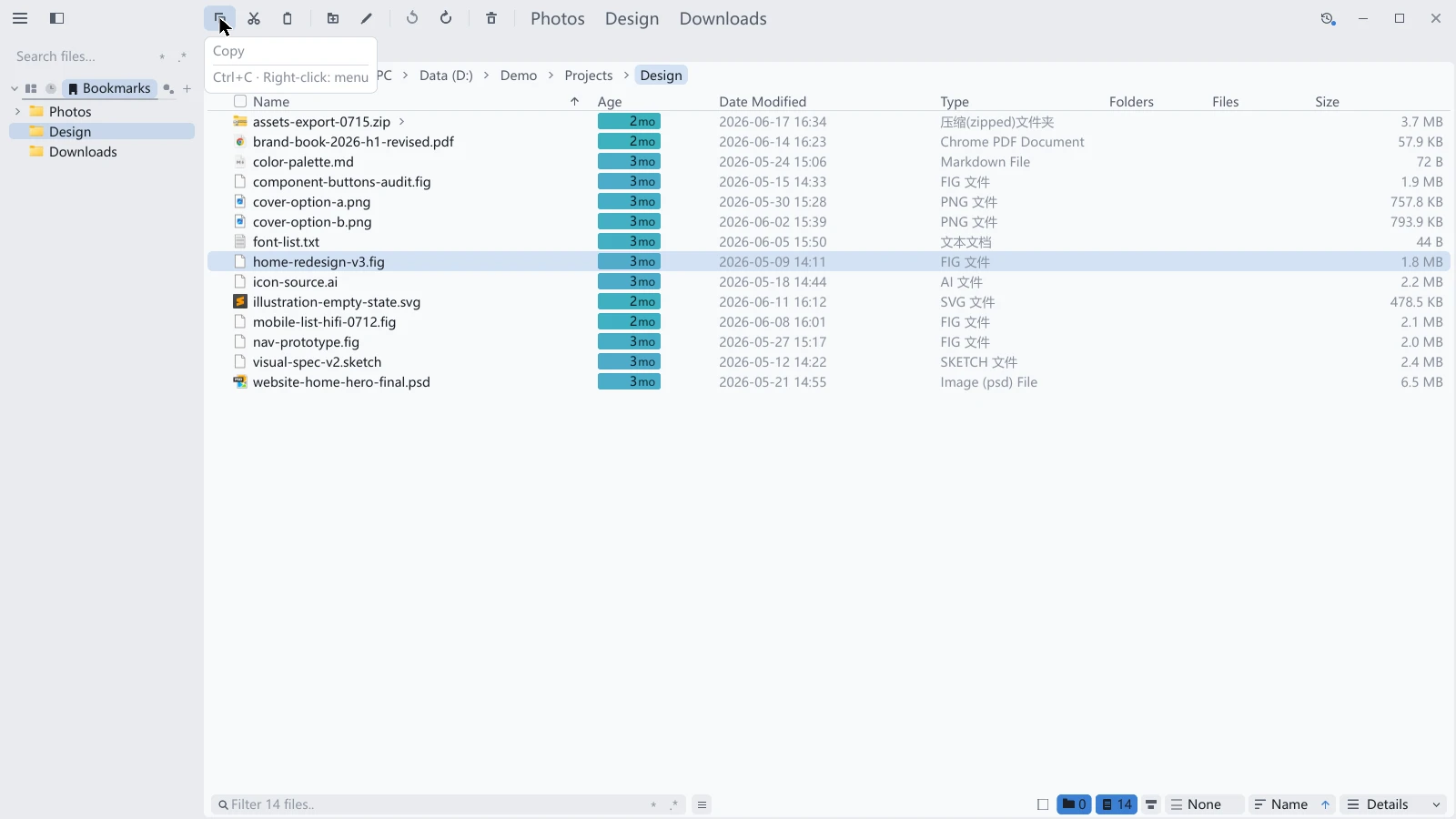
A greyed-out button means there is nothing for it to act on. With no file selected, Copy is grey and clicking it does nothing at all. Paste is the exception and stays clickable.
Using the buttons
Clicking a quick button is exactly the same as pressing its shortcut. The action applies to the current tab of the focused pane, the same target the shortcut has. After splitting, click the pane you want to work in, then click the button.
Using the favorites
| How you click | What happens |
|---|---|
| Click a favorite | The current tab goes there |
| Middle-click / Ctrl+click | Opens in a new tab, leaving the current one where it is |
| Click a favorite folder | Opens its dropdown; click again to close it |
Inside a favorite folder's dropdown, subfolders open as submenus, so however deep the bookmark tree goes the bar stays one row. Entries in the dropdown take middle-click and Ctrl+click too.
Right-clicking a favorite or a favorite folder on the bar gives the same menu the sidebar does (Open, Open in New Tab, Rename, Copy Path, Tags; for a folder, New subfolder, Rename, Delete). It is how you rename a bookmark with the sidebar collapsed.
Dragging a folder from the file list onto the strip bookmarks it. Drop it on a favorite folder and it is filed inside that folder, with no need to go into the folder first and click the star.
Rearranging what is on the bar
Quick buttons are dragged into a new position, greyed-out ones included. The neighbouring buttons make room as you drag, the button lands when you let go, and the position is remembered.
A favorite on the bar can be dragged to three places:
| Where you drop it | What happens |
|---|---|
| A favorite folder beside it | Filed inside that folder |
| A pane | The whole pane highlights, and letting go opens it in a new tab in that pane |
| The Bookmarks component page or its tab in the sidebar strip | Drop on the Bookmarks tab to place it at the end of the top level, without switching pages first. For a position inside the page, first select Bookmarks: the middle of a folder row files it inside, and between two rows inserts it there. Hovering over a collapsed folder expands it; a highlight or insertion line marks the drop target |
Favorites cannot be reordered on the bar. They are a projection of the bookmark tree, so first select Bookmarks in the sidebar tab strip, then arrange them within that page. Favorite folders themselves cannot be dragged.
Dragging a quick button off the strip does nothing, and does not remove it. To remove one, right-click it and use Remove from quick bar, or delete it on the settings page.
Right-clicking a quick button also offers Customize quick bar…, which opens that settings page; right-clicking blank space on the bar goes to the same page.
Folding away what does not fit
When the bar runs out of room, the items that do not fit fold into the » at its right end; click it to open a panel. Favorites fold away first and quick buttons after. Favorites in the panel take middle-click and Ctrl+click as well, and neither of those closes the panel, so you can open several tabs in a row.
The bar is always one row; it never grows to two because of how much it holds.
Configuring it in Settings
The Appearance group in Settings holds a Quick Bar page, which is also where Customize quick bar… on the bar takes you.
| Setting | Values |
|---|---|
| Show as | Off / One row (default, favorites and buttons share one strip) / Two rows (buttons on top, favorites below) |
| Show quick buttons | Turn it off and only the favorites are left |
| Quick button scale | 80% / 90% / 100% / 125% (default) / 150%, see The two scale steps |
| Show favorites | Turn it off and only the quick buttons are left |
| Favorites scale | The same five steps, also 125% by default |
| Button labels | Icon (default) / Icon + text / Text |
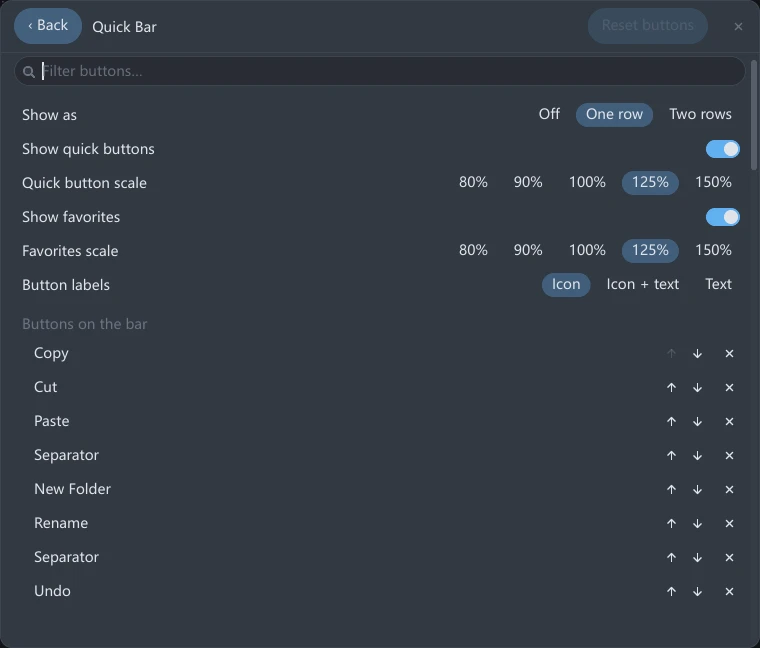
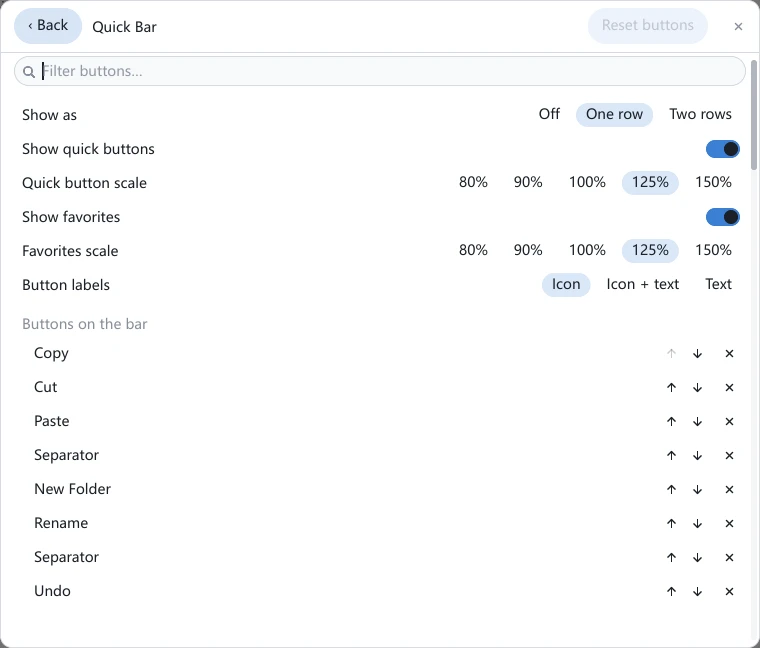
Below them are two lists. Buttons on the bar shows what the bar holds right now, each row ending in ↑, ↓ and ×; Available lists what else can go on it, each row ending in +. What is available covers every action, the custom commands you configured, plus a Separator and a Spring (pushes what follows to the right edge). Actions already on the bar are still listed here, greyed out.
A Filter buttons… box sits above the lists. There are dozens of actions, and filtering finds one faster than scrolling. When nothing matches it reads No button matches that.
Rows on this page cannot be dragged to reorder. Use the ↑ ↓ at the end of a row, or go and drag on the bar itself.
Reset buttons restores only the item list to the factory row. It leaves Show as and Button labels alone, since those are two separate settings whose current value is written on their own row. When the item list is already the factory one, the button is grey.
Turning off both Show quick buttons and Show favorites makes the bar disappear, but your Show as choice is untouched: turn either one back on and the bar returns in the mode you picked. With Two rows, turning off one half collapses the bar to a single row.
The two scale steps
Quick button scale governs the row of buttons and Favorites scale governs the row of favorites, each set on its own: you can make the buttons smaller and the bookmark names larger at the same time.
Both sit on top of the UI scale rather than being part of it: UI Scale in the General group answers how large the interface should be on this machine, while these two answer how large this strip should be relative to the rest of the interface.
Both halves ship at 125%: the strip is a row of icon-only buttons, and at 100% it reads as small on a high-resolution screen. The cost is that the band across the top of the window grows from 30 px to 36 px, about a third of a row of files; set both back to 100% and the strip returns pixel for pixel to what it was.
At 80% or 90% the buttons are drawn smaller, but the band stops shrinking with them — the menu button in the top-left corner and the window controls in the top-right have to stay on it.
The dropdown a favorite folder opens, and the » overflow panel, are menus: their row height follows the interface and neither of these two steps applies to them.
Turning the strip off
Set Show as to Off. With the bar gone, the menu and sidebar buttons in the top-left corner and the window controls in the top-right return to the tab bar's row, and the top of the window gives back whatever the band occupied — 36 px with the factory settings, and 30 px with both scale steps back at 100%.
Downgrading loses your quick bar customisation. Older versions do not recognise the quick bar's configuration lines: they ignore each one on read and drop it the next time the file is written. Go back to an older version and return, and the quick bar is back to the factory row; your bookmarks are unaffected.