
Preview tab
A preview tab is a tab that does nothing but show a preview. It opens no folder of its own; instead it binds to a tab group as its source — whatever that group has selected is what it previews. This page covers how to create one, how to change what it follows, and what the preview area shows in each situation.
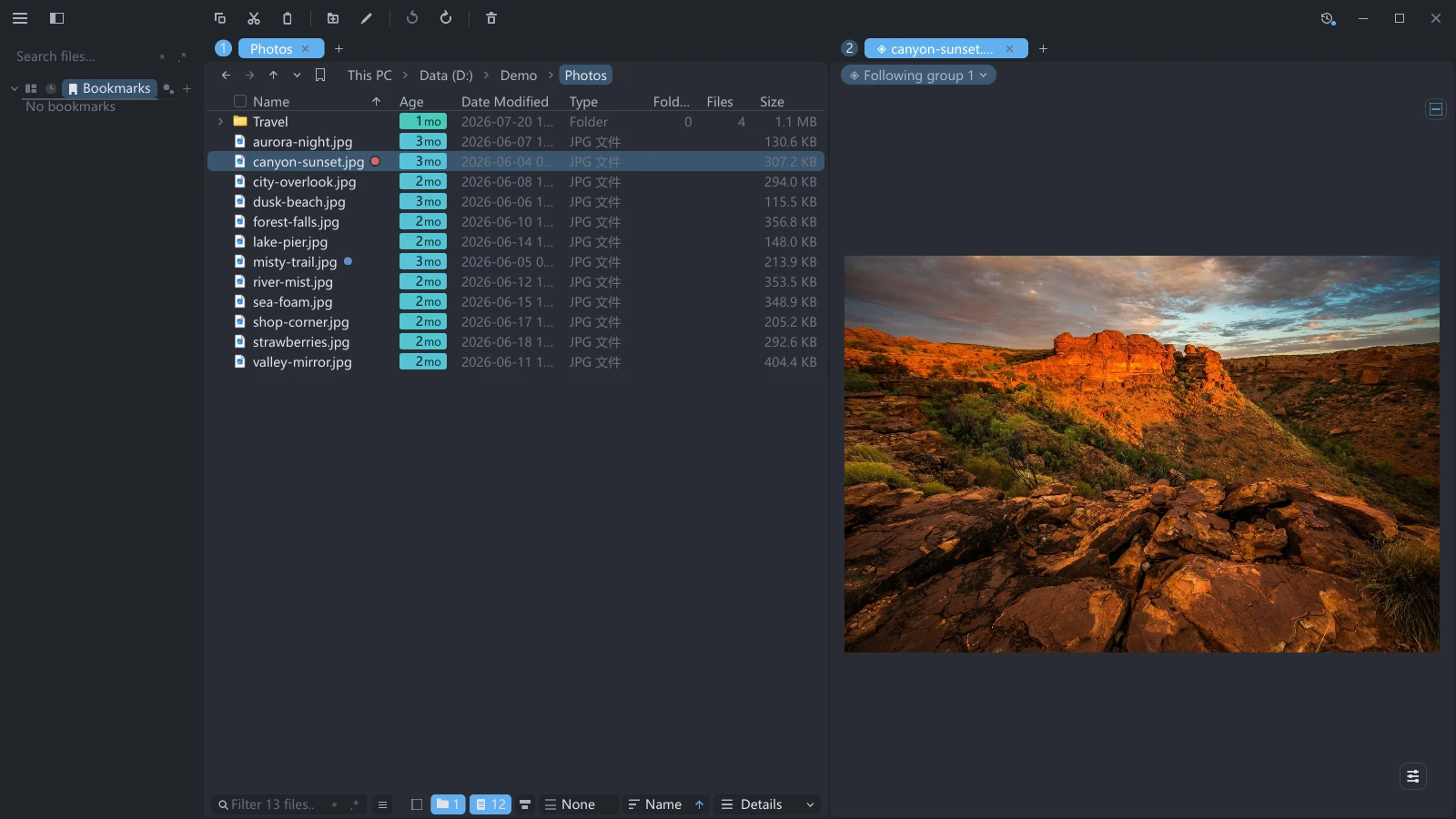
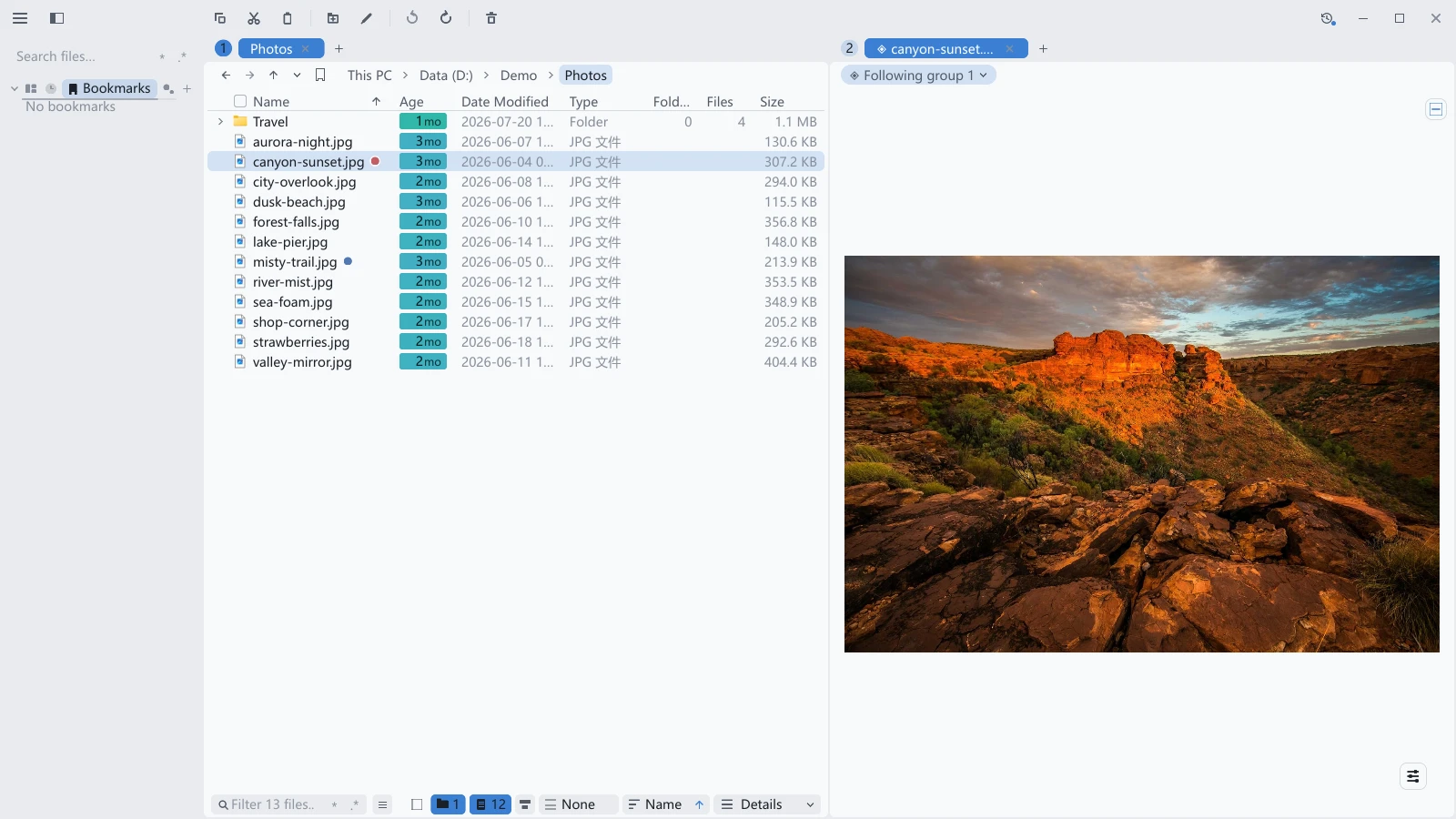
Differences from the other three previews
The three previews described in Preview — the large image in the gallery, the rightmost column, the details panel in the details and icons views — all sit inside the tab you are looking at files in: how large the preview can be is decided by whatever space that tab has left, and only one file can be previewed at a time.
A preview tab differs on both counts:
- It is a tab in its own right, so it can go into any pane, and its size is decided by the split rather than by a file list.
- You can have several at once, each bound to a different group; or pin one to a file and let another follow your clicks, and compare two files side by side.
A preview tab shows the same previews as everywhere else. For which types can be previewed and what the limits are, see Preview; it needs an activated license just the same.
Creating a preview tab
- Right-click any preview surface and choose New preview tab from here, or right-click the empty part of a tab bar and choose New preview tab.
- The window dims and target selection begins: the top reads Where should the preview tab go? (click a target · Esc to cancel), and the middle of each pane is labelled Into group 1, Into group 2, and so on. Click the target you want.
- The preview tab lands there, and a toast reads Preview tab created · following group N.
What each entry point binds to
| Where you right-click | Menu entry | What it binds to |
|---|---|---|
| Any preview surface: the gallery image, the rightmost column, the details panel | New preview tab from here | The group holding the tab you right-clicked |
| The empty part of a tab bar | New preview tab | The group that tab bar belongs to |
A new preview tab always arrives already bound. When the group behind a tab bar holds no file tab at all, New preview tab is greyed out and reads This group has no file tab.
The targets
| Click here | The preview tab goes |
|---|---|
| The middle of a pane | Into that group, as one of its tabs |
| The top / bottom / left / right half of a pane | Splitting that group in two, taking one half |
| The divider between two panes | In between them, sharing that axis evenly |
These are the same targets you get when dragging a tab, and they do the same thing. Press Esc to cancel and create nothing.
If the foreground tab of the source group had its details panel open, that panel collapses as the binding takes effect, and the toast then reads Following group N · side details collapsed, with an undo on it that puts the panel back.
The binding chip
A preview tab has no back, forward or address bar in its nav bar, only a binding chip saying what it currently follows:
| The chip reads | Meaning |
|---|---|
| ◈ Following group N | The foreground tab of group N in this window |
| ◈ Following window W · group N | A group in another tessoa window |
| ◈ Following focus | Whichever pane you are working in |
| ◈ Pinned | The pinned file, whatever the source does |
Click the chip to open the rebinding menu, which lists every target you can follow: Follow group N, Follow window W · group N, Follow focus, Pin current file. Hover a row and the group it names lights up as a whole, so you can see which one it is before choosing.
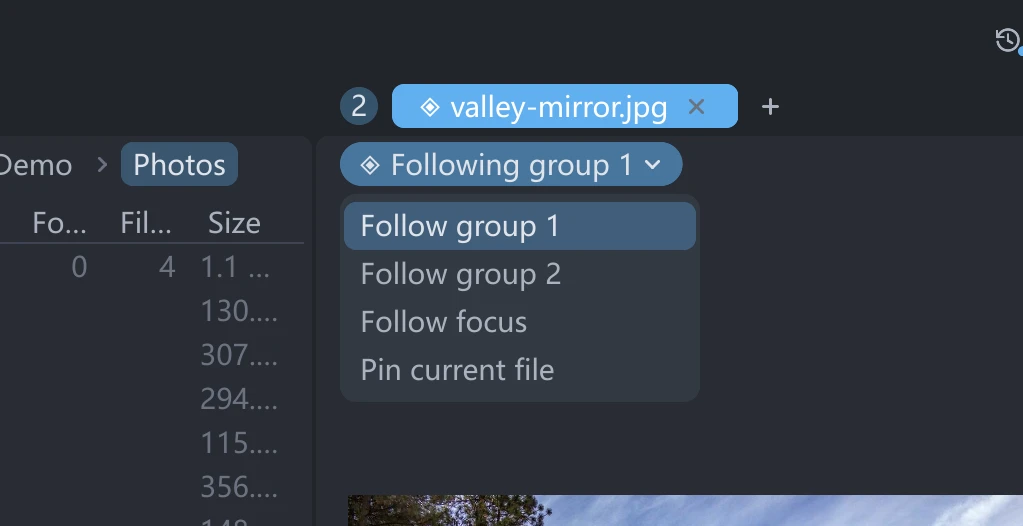
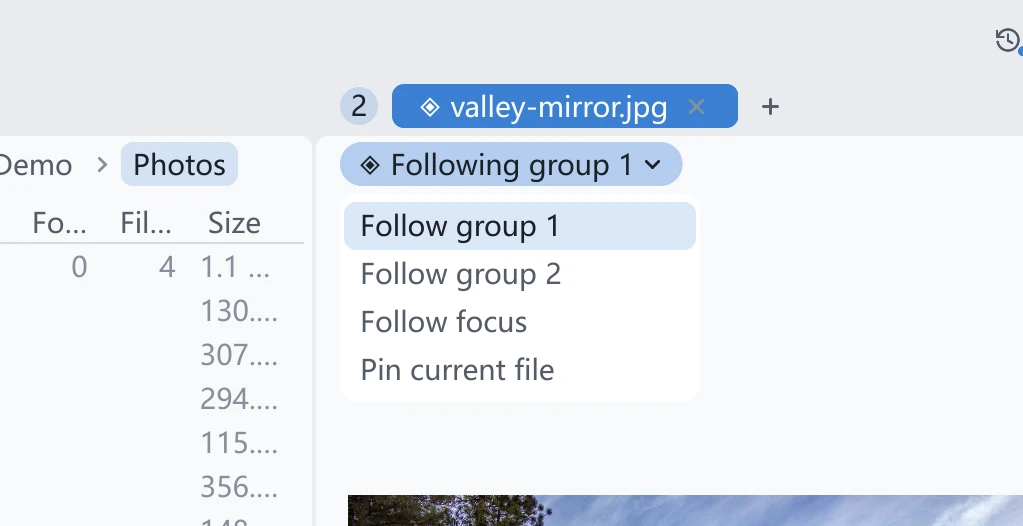
The tab's own title is the name of the file being previewed, prefixed with a ◈; with nothing to preview it reads Preview.
Tab group numbers
The left end of each tab bar carries a group number badge, numbered in layout order (top to bottom, left to right), with a tooltip reading Tab group N. This is the number the binding chip means by "following group 2".
The badge appears in three cases: the window has two or more tab groups, the window holds any preview tab at all, or a group in this window is being followed by a preview tab in another window.
Its shape is yours to choose. Open Settings, find Tab Group Number in the Tabs group, and pick between Circle Badge (the default), Keycap and Corner Mark.
A binding across windows spells out both numbers: the chip reads window W · group N, and in the window being pointed at the badge is drawn in two parts as well, with a tooltip reading Window W · tab group N.
The number is drawing order, not identity. Change the split or close a window and the same group may well get a different number, but a binding follows the group itself, not the digit 2. When a number really does change, the badge and the binding chip both flash a ring at the same moment, so you know the number on screen is no longer the one you read a second ago.
What the preview area shows
The source is not always sitting on exactly one file, so the preview area has a state for each case:
| What the source is doing | The preview area shows |
|---|---|
| Exactly one file selected | The preview as usual |
| Two or more items checked | A summary card: N items selected, N files · N folders, Total … |
| Nothing selected | An info card for the current folder, with No file selected under it |
| The source group holds no file tab | No file tab in the source group and Drag a file tab into it to resume previewing, plus a rebinding button on the spot |
| The source group or tab was closed | The last frame it had, an amber bar reading Source tab group was closed, and the same rebinding button |
| The pinned file was deleted or renamed | The last frame greyed out, with File is no longer here |
| The preview tab is itself in the background | Nothing is decoded; a small dot on the tab says the content changed |
When the source group is closed, tessoa does not rebind for you and does not blank the display: the last frame stays on screen, and which group to follow next is yours to pick from the rebinding button on the amber bar.
Pinning a file
Pinning parks a preview tab on one file so that it stops following the source. There are two ways:
- Click the binding chip and choose Pin current file.
- Drag a file from a list onto the preview tab's display: a dashed overlay covers it reading Release to pin …, and letting go pins it. Only one file at a time; dragging a batch in does nothing.
With two preview tabs, one pinned and one following, you can compare two files side by side: one stays on the file you are comparing against, the other follows your clicks in the list.
What you can do inside a preview tab
Everything the preview itself offers works as it does elsewhere: images zoom and rotate, text can be selected and searched with Ctrl+F, spreadsheet cells can be selected, PDFs turn pages and change layout, and the tool row over the display works as usual.
Three things are different:
- No nav bar controls and no footer. A preview tab does not stand for a folder, so back, forward, the address bar, the filter box and the view switcher are not drawn; the binding chip is all the nav bar holds.
- The attribute block has its own toggle. A button matching the footer one floats at the top right of the display; clicking it alternates between showing the attributes and Hide attribute info. F3 and Vim mode's
zpdo the same thing when they land on a preview tab. - Ctrl+wheel does nothing on content that cannot be zoomed. Over an image it zooms as usual; over text, a spreadsheet or one of the state cards it neither changes the font size nor switches the view.
Moving, other windows, and restarts
- Dragging changes position, never the binding. A preview tab reorders, moves into another group and tears off into a new window like any other tab, and wherever it ends up it still follows the group it did before.
- It can follow a group in another window. Drag a preview tab to another window and its binding becomes window W · group N, and what is selected over there still drives what is shown here.
- Bindings are saved with the session. Quit normally and reopen, and the preview tabs and their targets are all back; when the target is in another window, the connection is made once every window has been restored. Switching a layout behaves the same way — the bindings are matched up again after the panes are rebuilt.