
Preview
Preview shows you what is inside a file without leaving tessoa. This page covers where the preview appears, which files can be previewed, and the limits they all share; each kind of file has its own page linked below.
Where the preview appears
There are four places it can land. The first three depend on the view you are using; the fourth is a tab of its own:
| Location | Preview location |
|---|---|
| Gallery | The middle of the window, one large image |
| Columns | The rightmost column, once you select a file in the last one |
| Details / Icons | A details panel at the side, toggled from a button in the footer |
| Preview tab | A tab that shows nothing but a preview, bound to a tab group — whatever that group selects is what it previews |
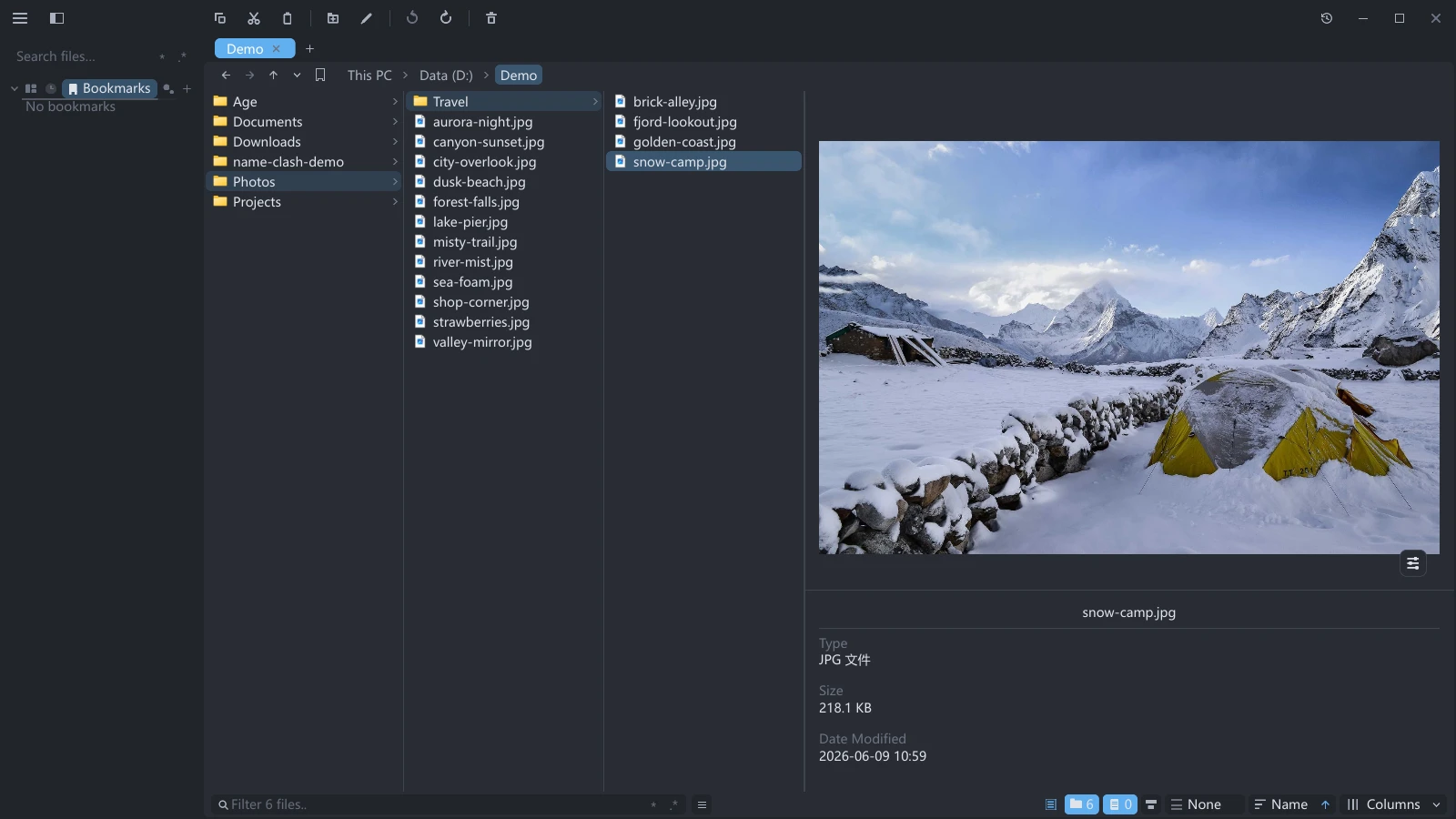
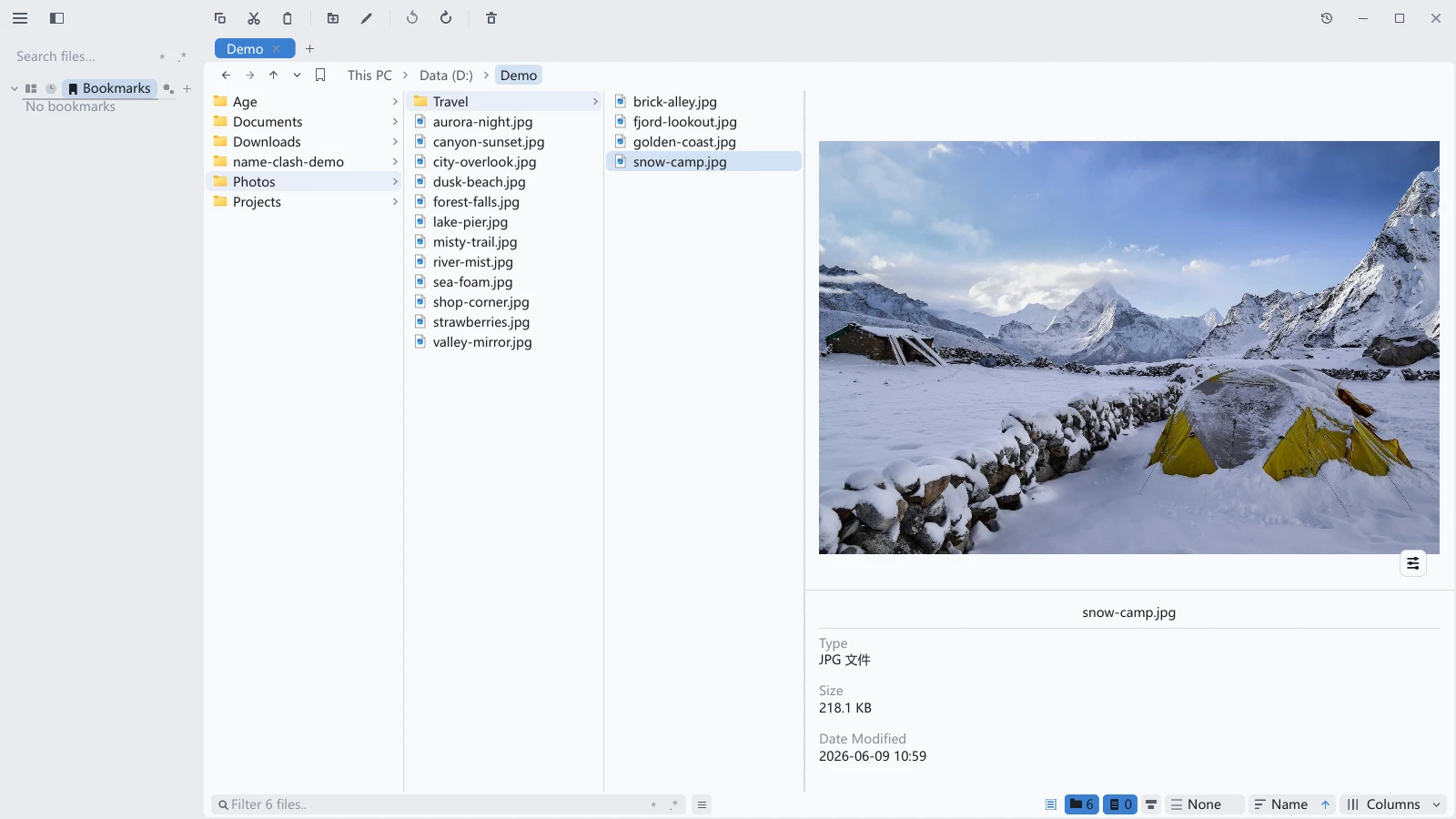
The toggle sits at the right end of the footer, just left of the folder-visibility button. It is there in the details, icons and columns views: in the first two it governs the details panel at the side, in columns it governs the rightmost preview column. The gallery comes with a large image and an info bar of its own, so switching to it fades the button out.
Clicking it runs a three-way cycle, and the tooltip says what the next click will do:
| State now | The tooltip reads | After a click |
|---|---|---|
| Panel open, attributes shown | Hide attribute info | Only the preview stays; the attribute block below it folds away |
| Panel open, attributes hidden | Hide details panel | The whole panel folds away and the list goes back to full width |
| Panel closed | Show details panel | Panel and attributes both come back |
The attribute block is the file name plus its type, size and date modified. Drag the divider between it and the preview to set how tall it is.
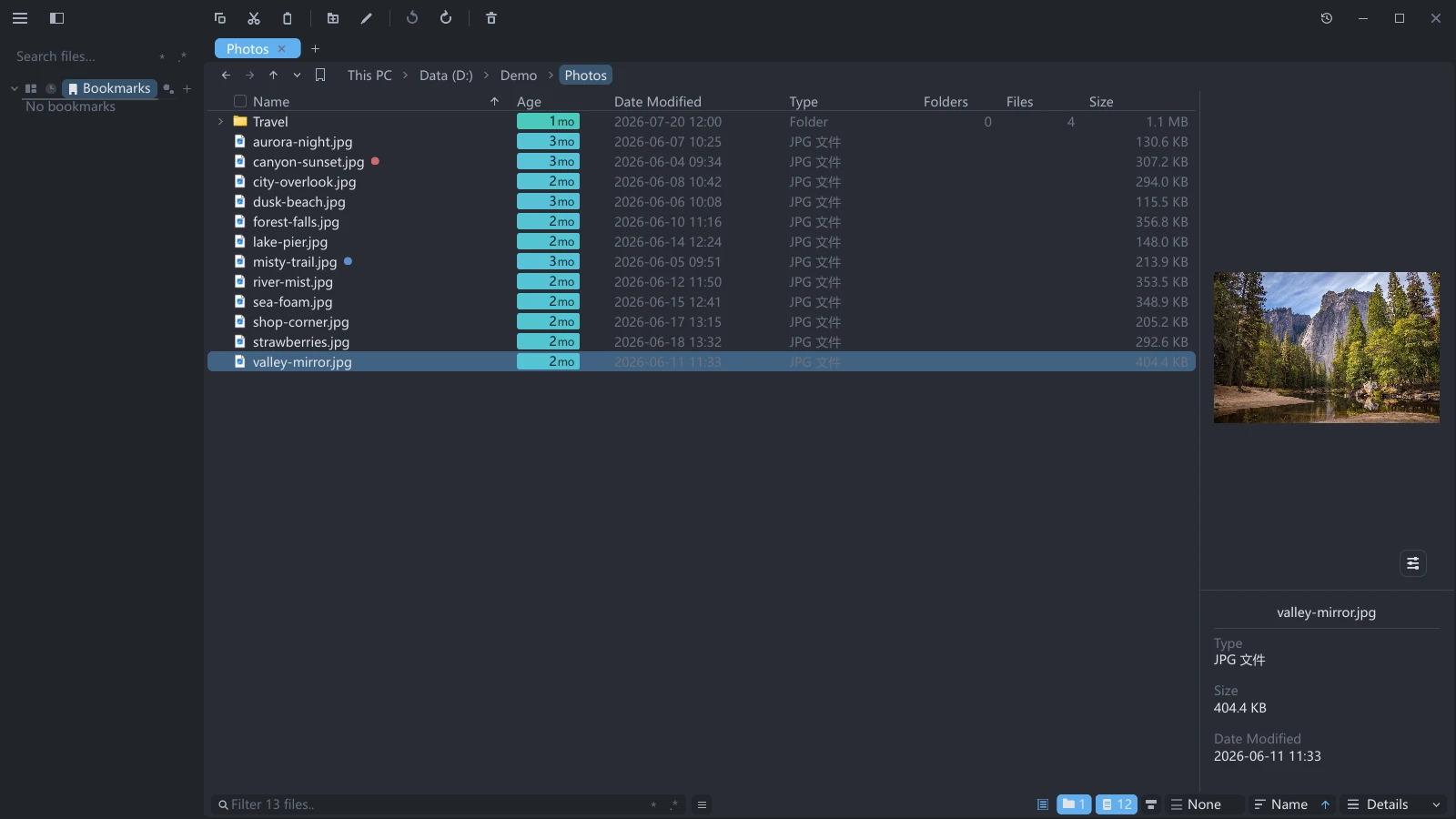
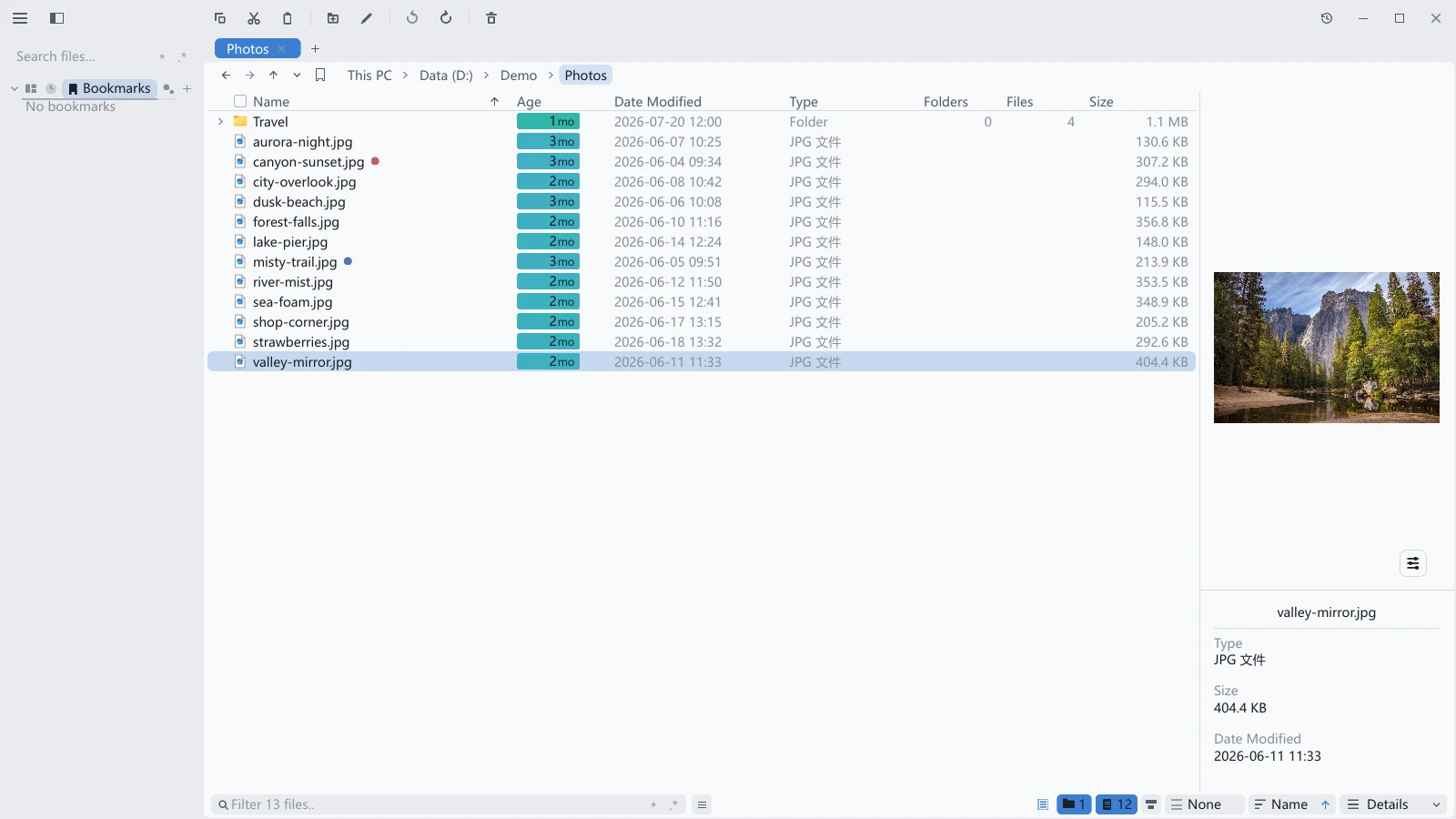
The panel can be re-docked: hover that button and four direction buttons slide up above it, moving the panel to the bottom, top, left, or right. Drag the edge between the panel and the list to resize it; in a pane too small to hold both, the panel is not shown and the list goes back to full width.
The columns preview takes only half of this. It is always flush against the right edge, has no direction buttons, and its width comes from its own divider with the column to its left.
What can be previewed
| Type | Coverage | Details |
|---|---|---|
| Images | PNG, JPG, GIF, BMP, WebP, TIFF, SVG, ICO, plus the cover art inside audio files | Image preview |
| Text and code | Plain text, config formats, and hundreds of source extensions | Text and code preview |
| Spreadsheets | .xlsx, .xlsm, .xlsb, .xls, .ods | Spreadsheet preview |
| Turn pages, change the layout, open password-protected ones | PDF preview | |
| Archives | zip, 7z, tar, and every compressed tar | Browsing archives |
| Video and audio | With a preview plugin installed: cover frames, and playback right in the preview | Preview plugins |
| Multipage documents | With a plugin that supports pages: formats such as .docx and .pptx, with page navigation, page jumps and layouts | Multipage plugin previews |
Windows adds one more route: .psd, .ai, .dwg, video and camera RAW files show up in the preview area whenever File Explorer has a thumbnail for them, see image preview.
For file types not in this table, the preview area shows the file icon and the basics — type, size, date modified — with No preview for this file type underneath; opening the file itself works as usual. Formats a plugin would handle, including some video and audio files, .docx and .pptx, read Install a preview plugin to preview this format instead, with a View plugins button below.
What every preview has in common
- Previews are read-only. Whatever the type, previewing never touches the file: rotating an image, switching PDF layouts, selecting cells in a spreadsheet all change what is on screen and nothing else.
- The interface stays usable while loading. Large files may take a moment to appear. Plugin previews show a spinner after about 0.3 seconds of waiting, including when turning pages in a multipage plugin preview; it disappears when loading completes.
- Going over a limit truncates instead of failing. Text stops at a marker line, spreadsheets show at most 500 rows by 64 columns, and enormous images fall back to an icon — none of it makes tessoa error out or hang.
- What you just looked at is kept for a while. Clicking back and forth between a few files, returning to one is instant rather than another decode.
- When another program writes over the file, the preview follows. Save from an editor, re-export an image, let a download overwrite the old file — tessoa notices that the copy on disk is no longer the one it drew and decodes it again. Images, text, PDFs and spreadsheets all work this way.
How much memory previews use
The previews being kept take memory, and how much is yours to set: open Settings and find Preview cache in the Display & Performance group.
| Value | Suits |
|---|---|
| Save memory | Memory is tight, or you rarely go back and forth |
| Balanced | The default |
| Performance | Memory to spare, and you click around a batch of images a lot |
| Custom | Set Preview VRAM budget and Text cache budget yourself |
Show Memory Usage in the same group puts a readout on the window listing Preview VRAM, Text Cache and Process line by line, which is handy to watch while you adjust the budgets.
The Process line only appears on Windows and Linux: the counter in parentheses is commit on Windows and RSS on Linux; macOS has no such figure, so the line is left out entirely. The Windows figure matches the "Commit size" column on Task Manager's Details tab, not the "Memory" column shown by default on Processes — that one is noticeably smaller.
Turning a budget down does not throw everything away at once — whatever is on screen is always kept, otherwise the display would flicker every time you lowered a notch.
Previewing file contents needs an activated license. Without one the preview area shows a short message instead of the content, and opening the file itself works as usual. The PDF preview and plugin previews additionally need the Supporter tier. Check your status under Settings → About → License.