
Interface tour
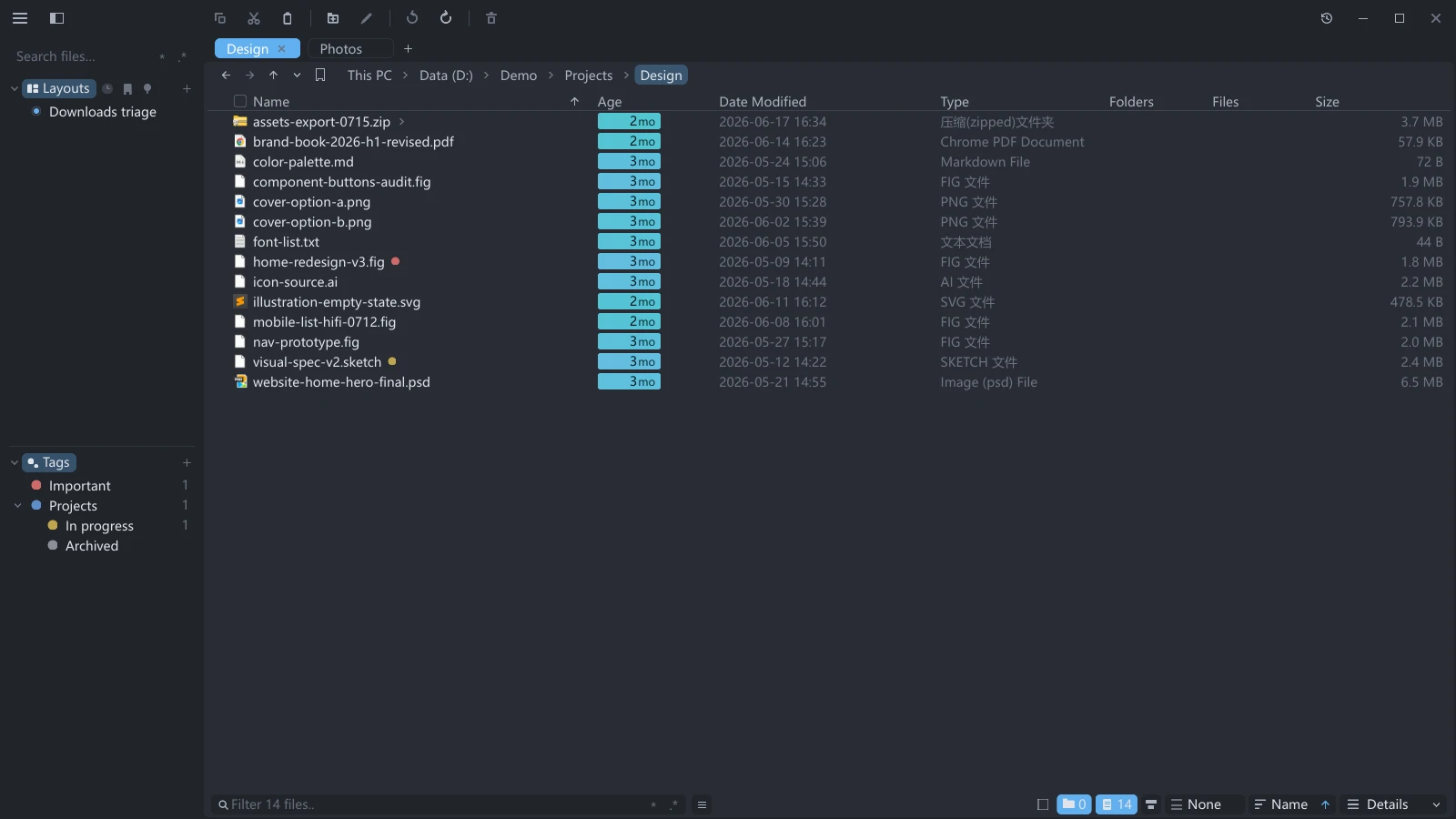
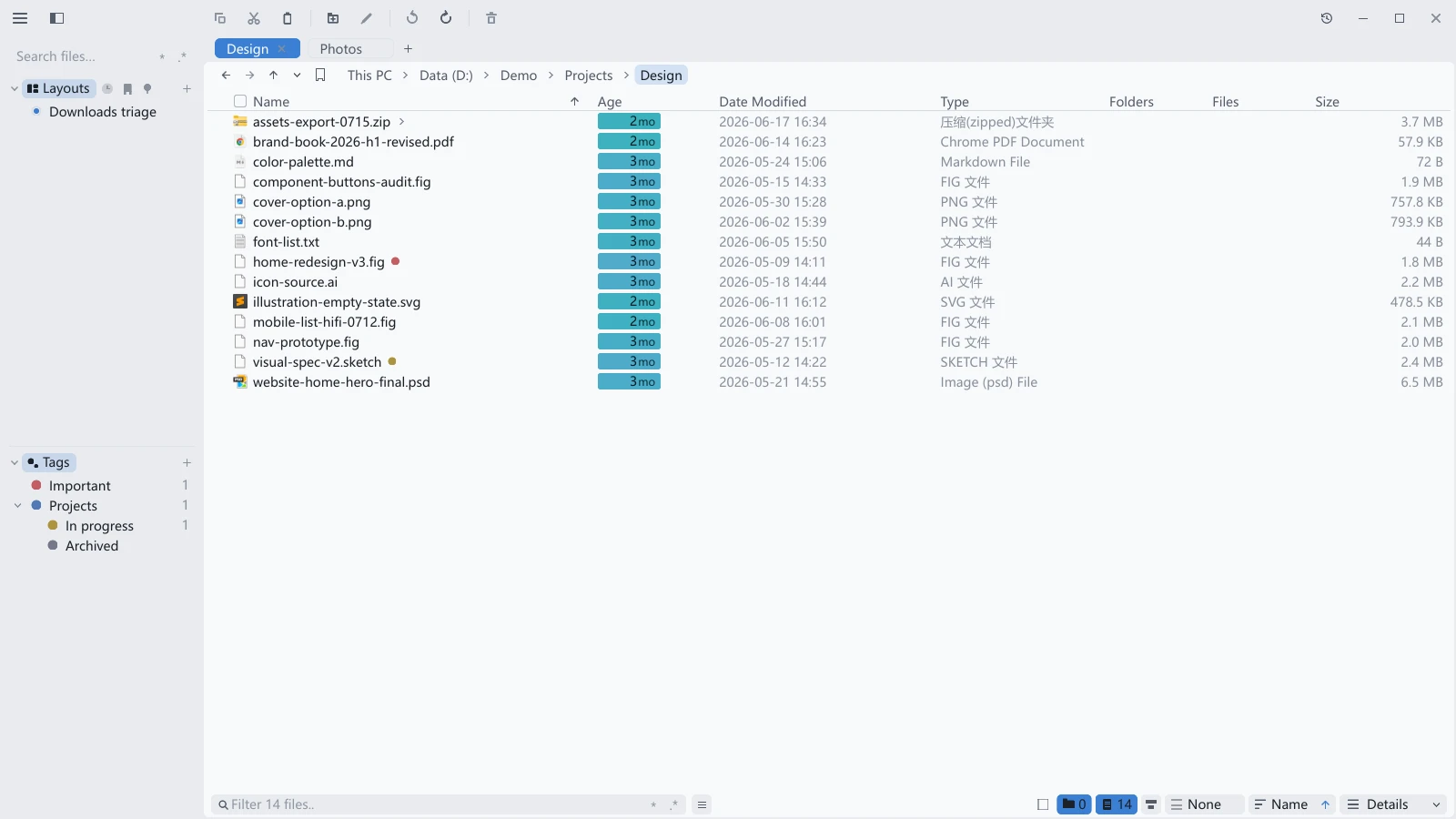
The tessoa window has six parts: the quick bar, the sidebar, the tab bar, the nav bar, the list area, and the footer. This page names them; the rest of the guide uses those names throughout.
What each part does
| Part | What it holds |
|---|---|
| Sidebar | Component tabs for layouts, tags, bookmarks and other pages, with stacked panes and quick search above them; see Sidebar & component pages |
| Quick bar | The strip along the very top of the window: buttons such as Copy and Paste on the left, your bookmarks on the right, and you decide what it holds — see Quick bar |
| Tab bar | Your tabs; + opens a new one; drag a tab to the window edge to split. Once split, its left end carries a tab group number |
| Nav bar | Back, forward, up a level, the current path, and the bookmark star |
| List area | What is in the current folder, shown as details, icons, columns, or a gallery |
| Footer | Status, the filter box, sorting, and the view switcher |
Settings does not sit in a corner. Press Ctrl+Shift+P (⌘+, on macOS) and it appears. Every preference in tessoa is in there.
The ribbon-shaped star at the right end of the nav bar handles bookmarks: click it to save the current folder, right-click it to lay out the whole bookmark tree. See Bookmarks.
There is also a clock button in the top-right corner of the window, which opens Activity — every copy, move and delete you make is recorded there, and can still be undone from it. A red dot on it means something wants your attention — most often, some items in an operation failed; a blue dot means there are ordinary entries you have not looked at.
The quick bar is on by default and takes a bit more than one row of files' worth of height at the top of the window, an amount that follows the scale of the two halves; turn it off and the menu and sidebar buttons in the top-left corner and the window controls in the top-right return to the tab bar's row.
The sidebar, tab bar, nav bar, list area and footer names are what this documentation calls them; they are not labels you will see in the app. The exception is Quick bar, which is what its page in Settings is called.
Closing the last tab does not quit the app; it returns to the Start Page. To quit, click the window's close button or use the quit shortcut.
What is in the sidebar
Sidebar sections appear as component tabs, with one page visible per pane. Click a tab to switch pages, or drag it to reorder or create stacked panes; see Sidebar & component pages. These pages are available:
| Section | What it holds |
|---|---|
| Layouts | The working scenes you have saved, see Layouts & workspaces |
| Recents | The folders you go to often, see below |
| Bookmarks | Folders you have saved, see Bookmarks |
| Tags | Your colored tags, see Tags |
| Storage | Your drives (each with a free-space bar), USB sticks, network drives, WSL distributions, and any phone you have plugged in, see Storage locations |
| Places | Home, Desktop, Documents, Downloads, Pictures and other shortcuts, including Recycle Bin on Windows and macOS. On macOS it lists the system Trash; see Recycle Bin. With this page selected, + at the right end of the tab strip adds a network share; see Network shares |
| Open Tabs | Tabs open in every pane of this window; click a row to focus it. Hidden by default; see Open Tabs |
The Search files… box sits above all panes. It searches open folders by default; Windows and macOS can also extend the scope through indexed search. See Search & filter.
Each page can be hidden separately under Settings → Sidebar; see Settings overview. Hiding changes visibility without clearing bookmarks, tags, layouts or recent history.
Recents is not a list of where you just were
Recents combines visit frequency and time. Each visit adds to the folder's score; older visits gradually carry less weight, with a 30-day half-life. Continued visits to a new project move it ahead of projects you no longer visit, without abrupt changes at fixed time boundaries.
Going back, going up, and clicking a breadcrumb all count as visits. A project root is often only ever reached by going up a level, and not counting that would keep the folder that deserves the top spot out of the list entirely.
Select Recents and click × at the right end of the tab strip to clear all records. The button is absent when there are no records. Settings → Sidebar also provides Clear Recent History.
To remove one entry, hover its row and click the ×, labeled Remove from Recent. This clears that folder's recorded visits; entering it again starts a new record, ranked by its current score.
The folder tree in the sidebar
Rows pointing to real folders on disk in Recents, Bookmarks, Places and Storage have a disclosure triangle. Clicking the triangle only expands; it does not change where you are. Clicking the row itself navigates to that folder. Subfolders appear below the row, indented one level, and can be expanded further. Tags, Layouts, Open Tabs and portable device rows do not provide a folder tree.
- The tree opens itself to the folder you are looking at: sitting in
D:\A\B,D:andAunfold andBis highlighted and scrolled into view, as in Explorer. It follows the focused pane only, and does nothing when the current folder is not under any sidebar entry. - A folder lists at most 100 subfolders, with a +N badge at the end of the row for the rest; to see them all, enter the folder and use the file area. Subfolders sort by name, Chinese by pinyin and digits by value.
- On slow media (network drives, WSL) a spinning waiting arc shows at the end of the row after the triangle turns, so there is no stretch where a click appears to do nothing. Expanding a WSL distribution that is not running starts it, the same as entering it would.
- The expanded state is not saved: reopening the program, or restoring a session, starts folded.
- Subfolder rows produced by the tree use the folder-row context menu (see Tabs & split panes); they have no × at the row's end and do not take part in bookmark drag reordering.
To stop the sidebar moving as you navigate, turn off Follow Current Folder in Tree in the Sidebar group in Settings; it is on by default. With it off the sidebar no longer expands and scrolls as you navigate, and the branches it opened on its own are collapsed there and then. Three things are unaffected: the disclosure triangles still work, branches you opened yourself stay exactly as they are, and the current folder is still highlighted — with the automatic expansion gone, that highlight is the only positional cue left.
Each component page keeps its scroll positions during the current run, and expanding a tree does not push other pages' tabs out of view. Overflowing content has vertical and horizontal scrollbars. Scrolling sideways moves row text while the tab strip and search box stay put; row-end buttons (×, ⋯, the lock) remain at the visible right edge. Shift+wheel scrolls sideways.
Folder picker
The folder picker is the dialog that floats up whenever tessoa needs you to point at a folder. Three places use it:
- Browse… at the end of Settings › Tabs › Specific Folder (titled Choose starting folder);
- Extract to… in the right-click menu (titled Extract to…), see Extracting archives;
- choosing the folder for one pane when creating a layout from a template (titled Choose folder for this pane), see Layouts & workspaces.
It is the same size as the settings panel and floats in the middle of the window in the same way, with two columns:
- The left rail lists folder shortcuts in Places, Storage, Recents and Bookmarks. Click a row to enter it. The picker still uses collapsible section headings; folding them affects this dialog only, leaving the main window's component tabs and panes unchanged. Drag the divider on the rail's right edge to resize it.
- The right side is a complete tab: back, forward, up a level, clicking breadcrumbs, switching views, sorting, rubber-band selection, the footer filter box, and the ▸ at the start of a row to expand it as a tree.
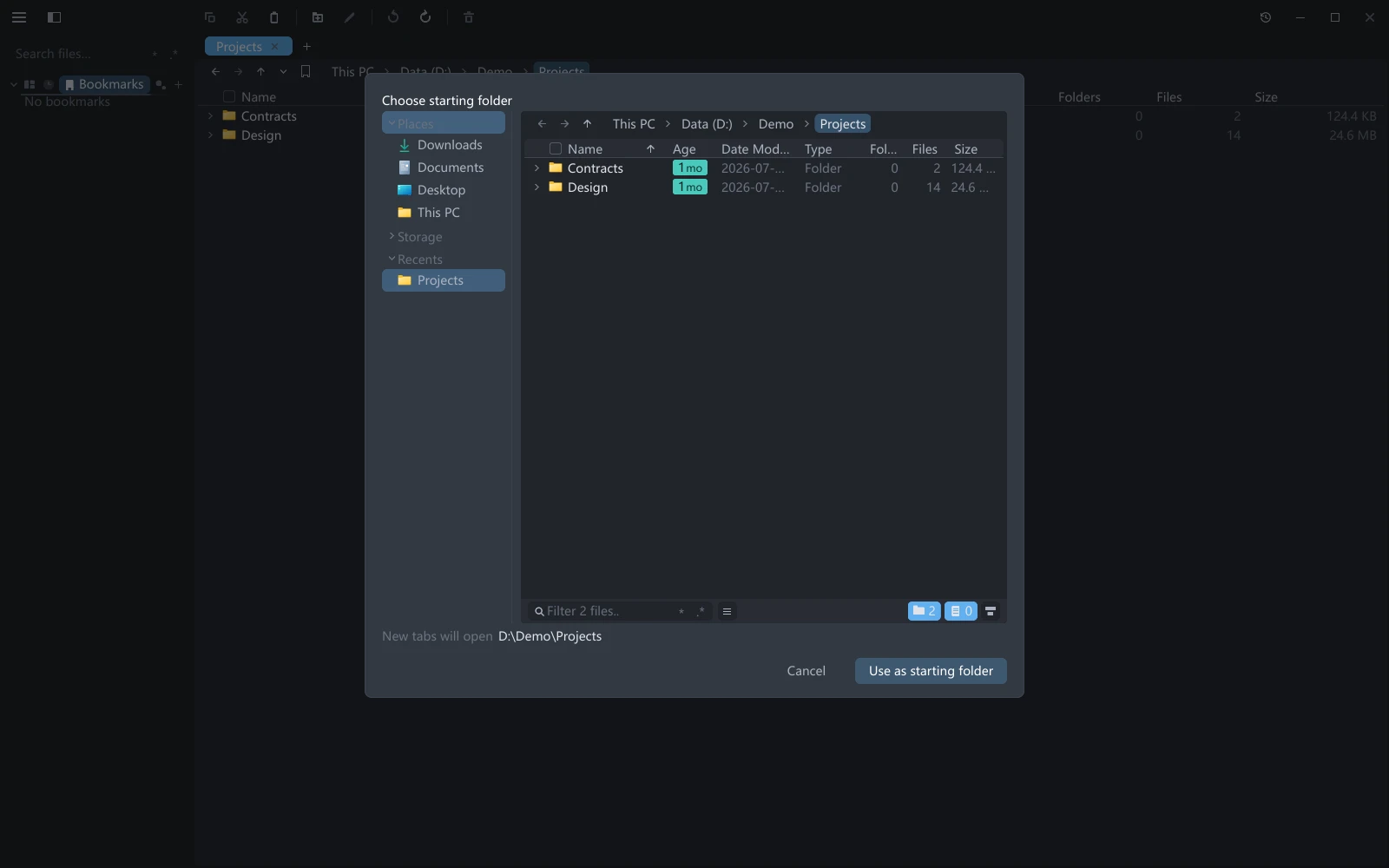
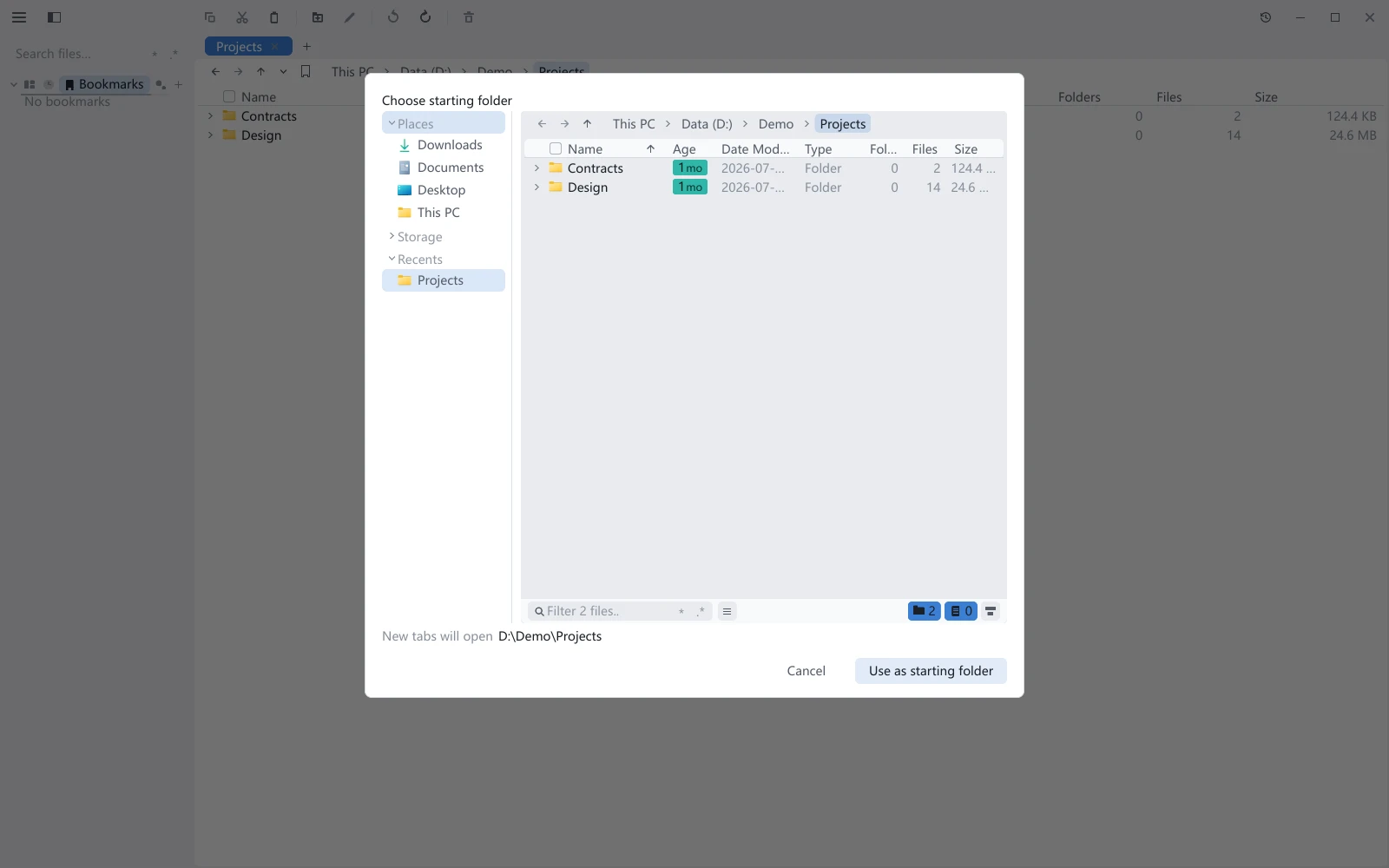
The bottom line spells out which folder you are about to pick; Cancel and the confirm button are at the bottom right. The confirm button is worded for the job at hand, such as Extract to This Folder or Use as starting folder.
| What you do | Which folder is confirmed |
|---|---|
| Select a folder, then confirm | The one you selected |
| Confirm with nothing selected (or a file selected) | The folder you are currently in |
| Press Enter on a folder | Enters it rather than confirming, as in Explorer |
| Press Ctrl+Enter (⌘+Enter on macOS) | Confirms whatever the state is |
Esc works in two stages: with something typed in the filter box, the first press clears the filter and the second closes the dialog.
Right-click in the right side for a small menu: on a row it offers Rename and Delete, on empty space New Folder and Refresh. The picker only picks a folder, so those four are the whole menu.
Folders you walk through in the picker do not count towards the sidebar's Recents. The picker also cannot list a connected phone, because what it returns has to be a real folder on disk.
Button tooltips
Hover a button and the tooltip comes in two parts: what the button does on top, and underneath it the shortcut as currently bound plus any mouse gesture that is not self-evident.
The shortcut part reads the current binding rather than fixed text: rebind an action on the Keyboard shortcuts page and the tooltip follows.
The gesture part only lists what is actually available, for example:
| The second line reads | On which button |
|---|---|
| Middle-click: new tab | Back / Forward / Up in the nav bar |
| Right-click: all bookmarks | The star in the nav bar |
| Right-click: tab menu | The × on a tab |
| Wheel: expand / collapse | Recursive expand in the footer |
| Wheel: show / hide | Show folders / show files / details panel in the footer |
| Wheel: change sort key | The sort badge in the footer |
| Wheel: change layout | The layout badge in the footer (icons view only) |
| Drag: reorder columns | The header of the details list |
A plain left click is never spelled out, since clicking a button is the left button by definition. The one exception is the grouping badge: a click there does not mean what a click on the sort badge beside it means, where a click flips the direction, so both are written out.
Interface terms in both languages
tessoa's interface can be switched to Chinese in Settings. This table maps the terms this documentation uses onto their Chinese equivalents, in case you are reading alongside a Chinese interface.
| English | 中文界面 |
|---|---|
| Start Page | 起始页 |
| This PC | 此电脑 |
| Settings | 设置 |
| General / Appearance / Sidebar / View / Tabs | 通用 / 外观 / 侧边栏 / 视图 / 标签页 |
| Input / Display & Performance | 操作 / 显示与性能 |
| Notifications / Maintenance / About | 通知 / 维护 / 关于 |
| Activity / Go to / Undo / Undo to here | 活动 / 转到 / 撤销 / 撤销到此 |
| Mark all read / Open settings | 全部已读 / 打开设置 |
| Activity Panel: Auto-Collapse When Unfocused | 活动面板:未聚焦时自动收起 |
| Notify when a cache is nearly full | 缓存接近上限时提示 |
| Update: vX.Y.Z | 有新版本 vX.Y.Z |
| Undone / Not undoable / In progress / Clear history | 已撤销 / 不可撤销 / 进行中 / 清空历史 |
| All / Files / Deleted / Notices | 全部 / 整理 / 删除 / 通知 |
| Add bookmark / Edit bookmark / Bookmarks (top level) | 添加书签 / 编辑书签 / 书签(顶层) |
| New folder… / Add / Done / Remove | 新建文件夹… / 添加 / 完成 / 移除 |
| Bookmark this tab / Bookmark all tabs… / Tab group | 收藏此标签页 / 收藏全部标签页… / 标签页组 |
| Close Tab / Close Other Tabs | 关闭标签页 / 关闭其他标签页 |
| Close Tabs to the Left / Close Tabs to the Right | 关闭左侧标签页 / 关闭右侧标签页 |
| Visibility / Clear Recent History | 可见性 / 清除最近记录 |
| Remove from Recent | 从最近移除 |
| Show Memory Usage / Preview cache | 显示内存占用 / 预览缓存 |
| Save memory / Balanced / Performance / Custom | 省内存 / 均衡 / 性能 / 自定义 |
| Activity History / Toast duration | 活动历史 / 提示条时长 |
| New Tab Folder / Match Current Tab / Home / Specific Folder | 新建标签页目录 / 跟随当前标签页 / 主目录 / 指定目录 |
| Double-Click Empty Space to Go Up | 双击空白处返回上一级 |
| History Dropdown: Hide Repeated Paths | 历史下拉:过滤重复路径 |
| Address Bar: Current Location Only | 地址栏只显示当前地址 |
| Font Weight / Text Gamma | 字重 / 文字 Gamma |
| Subpixel Positioning / LCD Subpixel Antialiasing | 亚像素定位 / LCD 亚像素抗锯齿 |
| Glyph Hinting | 字形对齐像素格 |
| Delete Permanently / Select All / Invert Selection | 永久删除 / 全选 / 反选 |
| Layouts / Recents / Bookmarks / Tags / Storage / Places | 布局 / 最近 / 书签 / 标签 / 存储 / 位置 |
| Open Tabs | 目录总览 |
| Follow Current Folder in Tree | 目录树跟随当前目录 |
| Local Disk / Removable Disk / Network Drive / Portable Device | 本地磁盘 / 可移动磁盘 / 网络驱动器 / 便携设备 |
| 58.0 GB free | 剩 58.0 GB |
| This folder is empty / Loading… | 此文件夹为空 / 正在加载… |
| The device returned nothing / Reading device… | 设备没有返回任何内容 / 正在读取设备… |
| Details / Columns / Gallery | 详细列表 / 分栏 / 画廊 |
| Icons: Small Icons / Medium Icons / Large Icons / Extra Large Icons | 图标:小图标 / 中图标 / 大图标 / 超大图标 |
| Language / UI Scale / Visibility | 语言 (Language) / 缩放 / 可见性 |
| Show hidden items: Hide / Show / Show all | 显示隐藏项:不显示 / 显示 / 显示全部 |
| Hide system noise / Rules / Storage items | 隐藏系统噪声 / 规则 / 存储项 |
| Wildcard / Regex | 通配符 / 正则 |
| Global / This folder only / This folder and subfolders / Choose folder… | 全局 / 仅此文件夹 / 此文件夹及子文件夹 / 选择文件夹… |
| + Add rule / N hidden | + 添加规则 / 已隐藏 N |
| Filter rules or storage items… / Filter commands… | 筛选规则或存储项… / 筛选命令… |
| Calculate Folder Sizes Automatically | 自动计算文件夹大小 |
| Solid-State Drives / Hard Disk Drives / Removable Media / Network Locations | 固态硬盘 / 机械硬盘 / 可移动介质 / 网络位置 |
| Not calculated | 尚未统计 |
| Theme / Follow System / Custom | 主题 / 跟随系统 / 自定义 |
| Dark 1 / Dark 2 / Gray / Light 1 / Light 2 | 深色 1 / 深色 2 / 灰色 / 浅色 1 / 浅色 2 |
| New scheme… / Delete scheme | 新建配色… / 删除配色 |
| Appearance / Font / Font Size / Spacing / Corner Roundness / Animations | 外观 / 字体 / 字体大小 / 间隔宽度 / 圆角 / 动画 |
| Zebra Striping / Flat Folder Icons | 斑马纹(隔行交错色)/ 扁平目录图标 |
| Ellipsis in the Middle | 省略号放中间 |
| View Configuration / View Settings Belong To / Current Folder | 视图配置 / 视图设置属于 / 当前文件夹 |
| Clear Folder View Memory | 清除文件夹视图记忆 |
| Folder hover spread | 目录悬浮展开 |
| Quick Bar / Show as / Off / One row / Two rows | 快捷栏 / 显示方式 / 关闭 / 合一条 / 分两条 |
| Show quick buttons / Show favorites | 显示快捷按钮 / 显示收藏夹 |
| Quick button scale / Favorites scale | 快捷按钮缩放 / 收藏夹缩放 |
| Button labels / Icon / Icon + text / Text | 按钮标签 / 图标 / 图标 + 文字 / 文字 |
| Buttons on the bar / Available / Separator / Spring | 栏上的按钮 / 可添加 / 分隔线 / 弹簧 |
| Reset buttons / Filter buttons… | 恢复默认设置 / 筛选按钮… |
| Remove from quick bar / Customize quick bar… | 从快捷栏移除 / 自定义快捷栏… |
| Type to Filter | 打字即过滤 |
| Right-Click Blank Areas Inside Rows for Folder Menu | 行的空白处右键 = 空白处菜单 |
| Reset to screen default | 恢复为屏幕默认 |
| New Folder | 新建文件夹 |
| List view columns / Applies to / All windows / This window only | 详情列表的列 / 作用范围 / 所有窗口 / 仅此窗口 |
| Folders / Reset to default | 普通文件夹 / 恢复默认 |
| Columns shown / Size columns to fit window | 显示的列 / 列宽适应窗口 |
| First column, cannot be hidden / Keep at least one column | 首列,不可隐藏 / 至少保留一列 |
| New Tab View / New Tab Icon Size | 新建标签页视图 / 新建图标大小 |
| Tab Width / Tab Overflow | 标签宽度 / 标签溢出 |
| Tab Outline / Tab Outline Width | 标签描边 / 标签描边线宽 |
| New Tab Position: At End / Right of Current | 新建标签页位置:末尾 / 当前标签页右侧 |
| Focus New Tab When Opened | 在新标签页打开后聚焦 |
| Keyboard Shortcuts / Context Menu Order / Menu accelerator keys | 快捷键 / 右键菜单顺序 / 菜单加速键 |
| Filter by action or shortcut… / Default / Reset All / Unbound | 筛选动作名或快捷键… / 默认 / 重置全部 / 未绑定 |
| Press new shortcut or mouse button… (Esc to cancel · Backspace to unbind) | 按下新快捷键或鼠标键…(Esc 取消 · 退格解绑) |
| Unbind / Yield | 解绑 / 让位 |
| Chord entries (Ctrl allow-list) | 和弦入口(Ctrl 系白名单) |
| File area / Sidebar / Command palette | 文件区 / 侧栏 / 命令面板 |
| Primary Select (Pointer) / Context Menu / Middle-Click Smart Open | 主选择(指针)/ 右键菜单 / 中键智能打开 |
| Back (Mouse) / Forward (Mouse) | 后退(鼠标)/ 前进(鼠标) |
| Left Button / Right Button / Middle Button / Side Button 1 / Side Button 2 / Wheel | 左键 / 右键 / 中键 / 侧键 1 / 侧键 2 / 滚轮 |
| Zoom UI (Wheel) / Cycle View Level (Wheel) / Scroll Horizontally (Wheel) | 全局界面缩放(滚轮)/ 切视图档(滚轮)/ 横向滚动(滚轮) |
| Custom Commands / Shell Extensions | 自定义命令 / 第三方右键插件 |
| Show third-party shell menu items / Filter menu entries… | 显示第三方右键菜单项 / 筛选菜单项… |
| Name / Program / Arguments / Applies to / Show on | 名称 / 程序 / 参数 / 适用于 / 出现在 |
| Multiple selection / Console window / Confirm before running / Enabled | 多选时 / 控制台窗口 / 执行前确认 / 启用 |
| One process, all items / One process per item | 一个进程拿全部 / 每项各起一个进程 |
| + Add command / + Add submenu / + Add from a template… / Common commands | + 添加命令 / + 添加子菜单 / + 从模板添加… / 常用命令 |
| Choose… / Test run | 选择… / 试运行 |
| Extensions that load a DLL / nothing to load / Rescan | 会加载 DLL 的插件 / 无需加载 / 重新扫描 |
| Auto (follow the measurements) / Keep loaded / Reload each time / Never load | 自动(跟着实测走)/ 常驻内存 / 每次重新加载 / 不加载 |
| Loading this extension… | 正在加载这个扩展… |
| Edit path (address bar) | 编辑路径(地址栏) |
| Drag / Ctrl + drag | 普通拖动 / Ctrl + 拖动 |
| Single-Click to Open Folders | 单击目录即进入 |
| Vim Mode (j/k navigation) | Vim 模式(j/k 键盘导航) |
| Vim Keys / Search commands or key sequences / Press the key sequence… / next key | Vim 键位 / 搜索命令或键序 / 按下要绑的键序… / 后继键 |
| Move / Navigate / Select / File actions / View & sort / Panes & tabs / Other | 移动 / 导航 / 选择 / 文件操作 / 视图与排序 / 分屏与标签页 / 其他 |
| Graphics / Frame Rate Cap / Window Size / Show Frame Rate | 显卡 / 帧率上限 / 窗口尺寸 / 显示渲染帧率 |
| Install / Integrate | 安装 / 集成到系统 |
| Check for Updates / Auto-check for Updates (daily) | 检查更新 / 自动检查更新(每天一次) |
| Auto-install Updates (applies on restart) | 自动安装更新(下次启动生效) |
| Send Anonymous Usage Statistics | 发送匿名使用统计 |
| Ready: vX.Y.Z / Restart Now | vX.Y.Z 已就绪 / 立即重启 |
| Clean Up Stale Tag References | 清理失效标签引用 |
| Export Language Template | 导出语言模板 |
| Version / Documentation / License | 版本 / 帮助文档 / 授权 |
| Third-Party Licenses / Terms & Privacy Policy | 第三方开源许可 / 用户协议与隐私政策 |
| Sort by / Group by / Layout | 排序方式 / 分组依据 / 排布 |
| Grid / Justified rows / Masonry / Mosaic | 规则网格 / 等高行 / 瀑布流 / 马赛克拼贴 |
| Hide / Unhide / Hide by pattern… | 隐藏 / 取消隐藏 / 按模式隐藏… |
| This item only / All by this name here and below / All by this name everywhere | 仅此项 / 此文件夹及子文件夹中的同名项 / 所有位置的同名项 |
| Quick Look / Space opens Quick Look | 快速查看 / 空格键呼出快速查看 |
| Space opens Seer | 空格键呼出快速查看(Seer) |
| QuickLook status / Seer status | QuickLook 运行状态 / Seer 运行状态 |
| Running / Not detected / Busy / Timed out | 正在运行 / 未检测到 / 正忙 / 响应超时 |
| Open / Open With / Copy / Cut / Paste | 打开 / 打开方式 / 复制 / 剪切 / 粘贴 |
| Choose another app… / Manage Open With… / default | 选择其他应用… / 管理打开方式… / 默认 |
| Applies to / + Extension / + Add a program / Flyout options | 适用范围 / + 扩展名 / + 添加程序 / 子菜单选项 |
| Open in New Tab / Open in Current Tab | 在新标签页中打开 / 在当前标签页打开 |
| Paste Into Folder / Copy Path / Delete / Properties | 粘贴到此文件夹 / 拷贝路径 / 删除 / 属性 |
| Save here | 保存到这里 |
| Dropped text / Dropped link / Dropped image | 拖入的文本 / 拖入的链接 / 拖入的图片 |
| Copy to X / Move to X / Create shortcut in X | 复制到 X / 移动到 X / 在 X 创建快捷方式 |
| New Folder / Refresh / Open in Explorer / Open in Terminal | 新建文件夹 / 刷新 / 在资源管理器中打开 / 在终端中打开 |
| Extract Here / Extract to Subfolder / Extract to… | 解压到当前文件夹 / 解压到同名文件夹 / 解压到… |
| Enter Password / Extract | 输入密码 / 解压 |
| Name conflicts / Ask every time / Always replace / Always skip / Always keep both | 同名冲突 / 每次询问 / 总是替换 / 总是跳过 / 总是保留两者 |
| Source / Existing / Replace / Merge / Skip / Keep both | 来源 / 已存在 / 替换 / 合并 / 跳过 / 保留两者 |
| Do the same for the remaining name clashes / Cancel whole batch | 对其余同名项执行相同操作 / 取消整批 |
| Choose starting folder / Use as starting folder | 选择起始目录 / 用作起始目录 |
| Extract to… / Extract to This Folder | 解压到… / 解压到此处 |
| Choose folder for this pane / Use This Folder | 选择这个窗格的初始位置 / 用这个文件夹 |
| Tags for This Folder / untitled folder | 当前文件夹的标签 / 未命名文件夹 |
| Show details panel / Hide attribute info / Hide details panel | 显示详情面板 / 隐藏属性信息 / 隐藏详情面板 |
| New preview tab from here / New preview tab / This group has no file tab | 新建为预览标签页 / 新建预览标签页 / 该组没有文件页 |
| Where should the preview tab go? / Into group N / Preview | 把预览页放到哪? / 进组 N / 预览 |
| Follow group N / Follow window W · group N / Follow focus / Pin current file | 跟随组 N / 跟随 窗 W · 组 N / 跟随焦点 / 钉住当前文件 |
| Tab group N / Window W · tab group N | 标签组 N / 窗口 W · 标签组 N |
| Tab Group Number: Circle Badge / Keycap / Corner Mark | 标签组编号:圆徽章 / 键帽 / 角标 |
| N items selected / Total / No file selected | 已选 N 项 / 合计 / 未选择文件 |
| No file tab in the source group / Source tab group was closed / File is no longer here | 源标签组里没有文件页 / 源标签组已关闭 / 文件已不在原处 |
| File context menu / Background context menu / Sidebar · Tag menu | 文件右键菜单 / 背景右键菜单 / 侧栏 · 标签菜单 |
| Reset Order / Lock in-menu drag reorder / Not set | 恢复默认顺序 / 锁定菜单内拖拽 / 未设置 |
| Zoom in / Zoom out / Rotate left / Rotate right | 放大 / 缩小 / 向左旋转 / 向右旋转 |
| No preview for this file type | 无法预览此格式 |
| Single page / Continuous scroll / Two-page | 单页 / 连续滚动 / 双页 |
| Match case / Match whole word / Use regular expression | 区分大小写 / 全词匹配 / 正则表达式 |
| Select All / Copy Cell Contents | 全选 / 复制单元格内容 |
| — Preview load limit reached — / Invalid / No results | — 已达预览加载上限 — / 无效 / 无结果 |
| Save Current Window as Layout / New from Template… | 将当前窗口保存为布局 / 从模板新建… |
| New from Template / Shape / Pane N / Create | 从模板新建 / 排布 / 第 N 格 / 创建 |
| Starting folders — click a pane to change it | 初始地址 — 点窗格改它 |
| Browse… / Use home folder / Home folder | 浏览… / 用主目录 / 主目录 |
| Apply for beta access | 申请内测资格 |
| Save Current Window Here / Duplicate Layout / Lock Layout | 保存当前窗口到此布局 / 复制布局 / 锁定布局 |
| Load This Layout / Reload This Layout | 加载此布局 / 重新加载此布局 |
| (Current Layout) / (Last Unnamed) | (当前布局) / (上次未命名) |
| This location already contains a file with the same name. / Rename | 此位置已经包含同名文件。/ 重命名 |
| commit / RSS (memory readout) | 提交 / 常驻(内存浮层) |
| Open terminal tab here / New terminal tab | 在此打开终端标签页 / 新建终端标签页 |
| Terminal / Restart Terminal / Restart with Shell / Clear Buffer | 终端 / 重启终端 / 以其他 shell 重启 / 清空缓冲区 |
| No shell found / Click or press any key to start | 没找到可用的 shell / 点击或按任意键启动 |
| Process ended / Working directory no longer exists | 进程已结束 / 工作目录已不存在 |
| Defaults restored: … / Settings restored to defaults | 已恢复默认:… / 已恢复默认设置 |
| (Empty) | (空) |
| Plugins / Preview plugins / Enable preview plugins | 插件 / 预览插件 / 启用预览插件 |
| Suggest installable preview plugins | 提示可安装的预览插件 |
| Installed plugins / Available plugins / Install from file… | 已安装插件 / 可安装的插件 / 从文件安装… |
| Enable / Disable / Uninstall / Open file location | 启用 / 禁用 / 卸载 / 打开所在位置 |
| Enabled / Disabled / Needs newer host | 已启用 / 已禁用 / 需更新宿主 |
| Install a preview plugin to preview this format / View plugins | 安装预览插件后可预览此格式 / 查看插件 |
| Agree & Continue / Not now | 同意并继续 / 暂不 |
| Recycle Bin / Restore / Delete permanently / Empty Recycle Bin | 回收站 / 还原 / 彻底删除 / 清空回收站 |
| Date Deleted / Drive | 删除日期 / 盘符 |
| Add Network Location | 添加网络位置 |
| Keep running in the background on close / Show / Quit | 关闭时保持后台运行 / 显示 / 退出 |
| Win+E / taskbar opens a new window | Win+E / 任务栏图标开新窗口 |
| Keep Folder Expansion While Grouped | 分组时保留文件夹展开 |
| Off / Follow Font / Force | 关 / 跟随字体 / 强制 |
| Classic Text Engine | 经典文字渲染引擎 |
| Bookmark this folder / Edit this bookmark (menu entries) | 添加书签 / 编辑书签 |
| Default shell | 默认 shell |
A suggested reading order
- Quick start: the main features in five minutes
- File operations: selecting, copying, renaming, finding
- Tabs & split panes: two folders side by side
- Tags and Layouts & workspaces: the two things tessoa does differently from other file managers
- Bookmarks: keeping the folders you go to often
- View modes: details / icons / columns / gallery
- Activity: looking up "where did I put that batch of files?"
- Vim mode: if you want to work entirely from the keyboard