
Filters and lenses
Filters narrow the items shown in the current file list by conditions such as name, date, type, size or tag. Lenses are saved sets of conditions that you can apply again. This page covers combining conditions, filtering within groups, and saving and using lenses.
Combining filter conditions
The footer filter box matches file names against the text you enter. Funnel filters let you choose from lists such as date ranges and file types. You can use both together. For example, enter report in the footer, then filter by type to show only PDF files. The list keeps PDF files whose names match “report”. For text matching modes, see Search and filtering.
When you check several options in one category, a file needs to match any of them. Conditions from different categories must all match. For example, checking PNG and JPEG in the type list, then choosing today for the modification date, shows PNG or JPEG files modified today.
Filtering changes only what is shown; it does not move or delete files. This PC and Recycle Bin pages do not provide funnel filters.
Checked files hidden by filters or the filter box are still included in deletion, copying and dragging. The footer shows how many checked files are hidden. Review the checked items before proceeding. Clear the funnel filters and filter text, and make sure the footer is not hiding files or folders, to see these items.
Filtering from column names
- In Details, click the funnel beside a column name. For example, clicking the funnel beside Type opens the type list.
- Uncheck the items you do not want to show. To show just one option, hover over it and click Only on the right.
- Check any other options you want to keep. Each check or uncheck updates the list immediately, without a separate confirmation.
- Press Esc or click outside the pop-up to close it. Closing the list keeps the conditions you set.
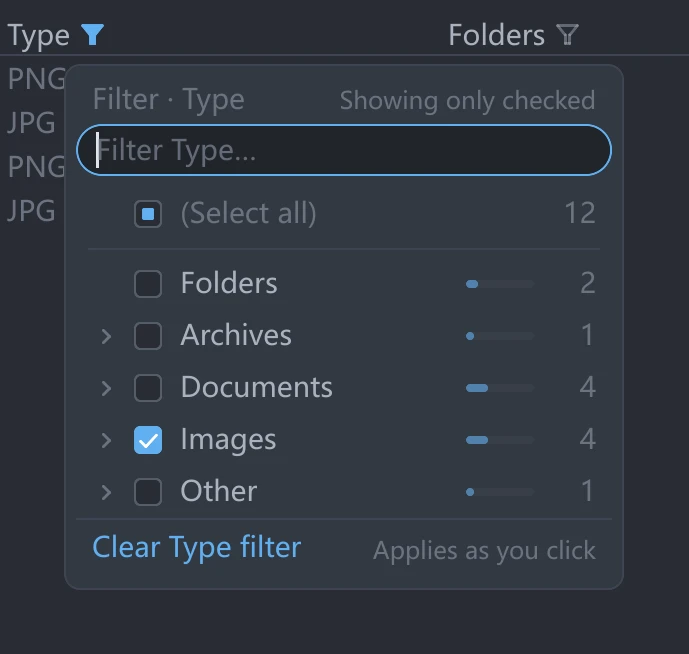
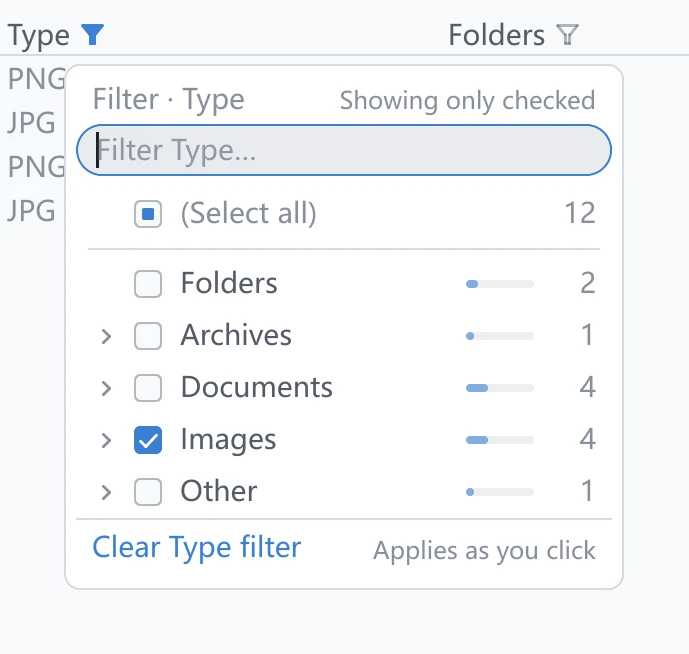
With no text in the option search box, checking the select-all box at the top clears the conditions for this category. Unchecking it shows none of the items in that category. When the list is long, you can type in the search box at the top to find an option. This text narrows only the option list and does not replace the footer filter text. With search text entered, the select-all box changes only the matching options' checkboxes.
Available conditions
| Condition | Effect |
|---|---|
| Name | Groups names by their first character into digits, A–Z and other characters. Chinese names use their pinyin initial. |
| Date Modified, Date Created, Date Accessed | Filters by time ranges such as today, yesterday and the past 7 days. Items with no timestamp are listed separately. |
| Date Added | On macOS, filters by when a file was placed in its current folder. Data is available only on local APFS / HFS+ drives that support this timestamp. |
| Type | Lists groups from the File Types settings, which expand into the specific types in the current folder. Checking a group includes its types. |
| Extension | Filters by extensions such as png and pdf. Folders and files without extensions are listed separately. Extension has no separate column header; choose it in All filters. |
| Folders, Files | Groups folders by the number of items they contain. Counting, not counted, and files for which the count does not apply are listed separately. |
| Size | Filters by size ranges. Folders are listed separately. |
| Tags | Filters by tag hierarchy. Checking a parent tag includes child tags. Items without tags appear under No tags. |
A date column and its corresponding age column use the same conditions. When both appear together, the funnel is shown in the date column. If only the age column is shown, you can still open filtering there. Tables in Columns also have funnels beside column names. Their lists reflect the folder in the column you clicked.
Counts in option lists
The count beside an option shows how many items fall under that option after applying the other conditions. For example, after choosing files modified today, the count beside PNG in the type list is the number of PNG files modified today. These counts also account for footer filter text and filters within groups.
Options with a count of 0 stay in the list and can still be checked. The footer's switches for showing or hiding folders and files do not affect these counts, so you can still see how many items would appear when you show them again.
If a file has several tags, it appears when any one of its tags matches the checked options. Unchecking a tag therefore does not always hide a file that also has another checked tag. In an expanded tree, a parent folder that does not match can also remain visible to show the path to matching child items.
Reviewing and clearing current filters
- Click the funnel inside the footer filter box to open All filters.
- Choose a condition category on the left. You can set conditions here even when the corresponding column is hidden. To filter by extension, choose Extension.
- Choose Active to review the current conditions and their combined result. Click a category to return to its option list, or click the close button at the end of a row to clear that condition.
- To clear all funnel filters, click Clear all. This clears global conditions and conditions within groups, and keeps the footer filter text.
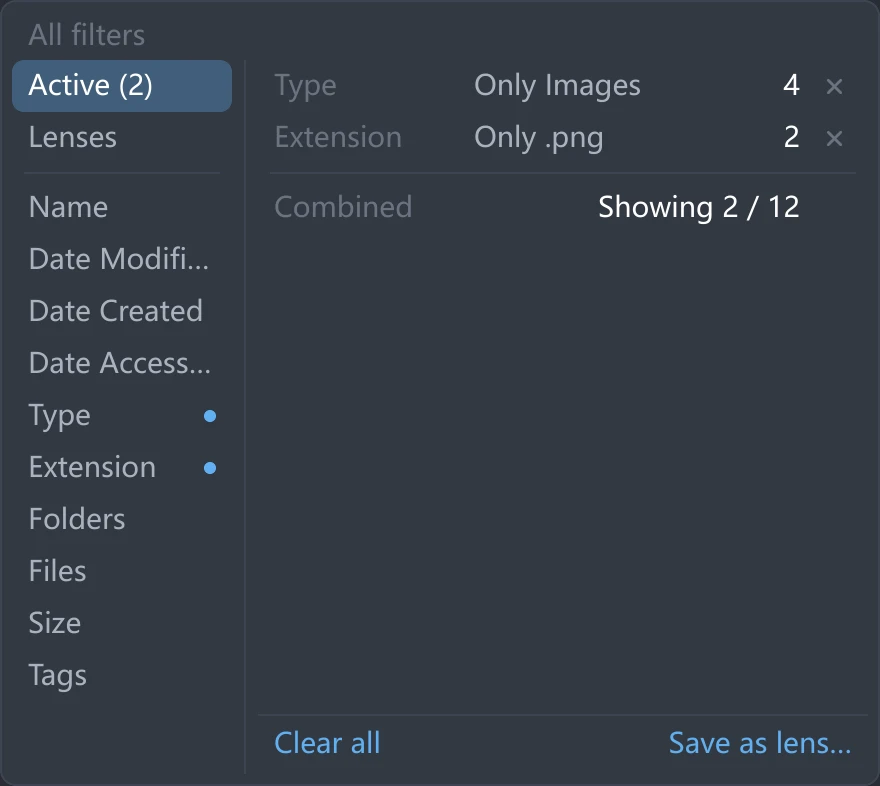
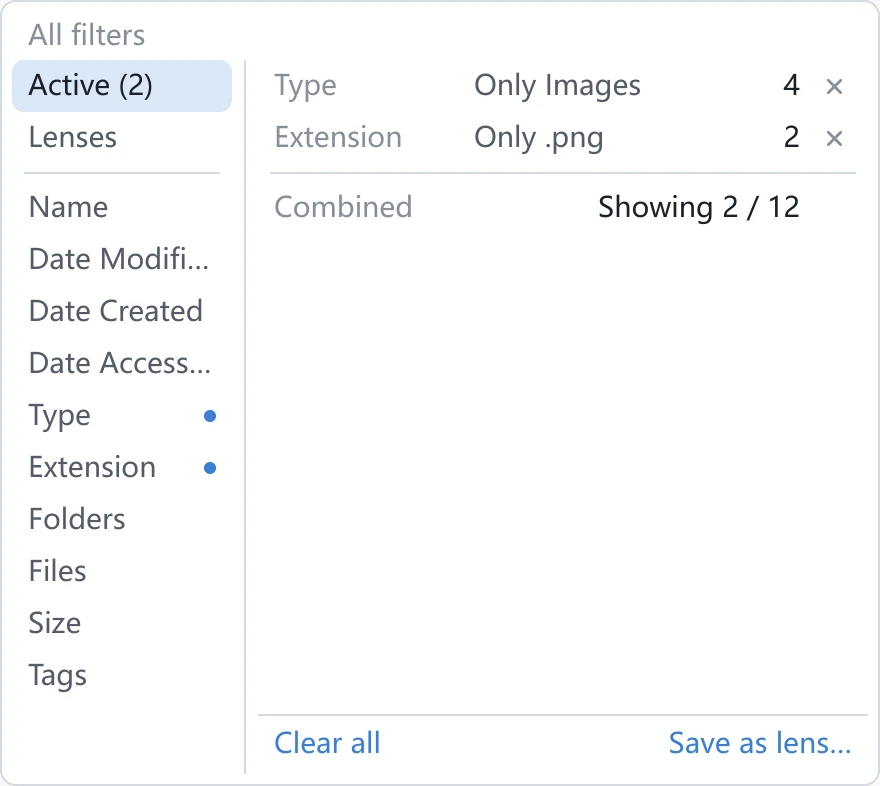
The count beside each condition category in Active shows how many items match that condition alone. You cannot add these counts to calculate the final result. Use Combined and the displayed item count below.
While funnel filters are active, the footer shows a summary and the number of displayed items. Click the summary to open Active. Its close button also clears all funnel filters and keeps the filter text. Active funnels are filled with the accent color, so you can identify filtering even after hiding a column or closing a pop-up.
Filtering within groups
Filters within a group affect only its members. Other groups continue to follow their existing conditions.
- Group the file list using the grouping options described in View modes.
- Click the funnel beside the target group heading. In Gallery, click the funnel beside the group name at the top left of the large image.
- Set additional conditions in the list that opens. For example, after grouping by type, you can show only files modified today within the PNG group.
When a group has filters, its heading shows “after filtering / before filtering”. A group with no matching items keeps its heading. To clear that group's conditions, remove its in-group entry under All filters → Active.
Show only this group in the pop-up instead filters the entire tab, hiding the other groups. This differs from narrowing only that group's contents. The other existing conditions still apply.
Saving and using lenses
Saving current conditions
- Set the funnel conditions you want to reuse, or enter footer filter text.
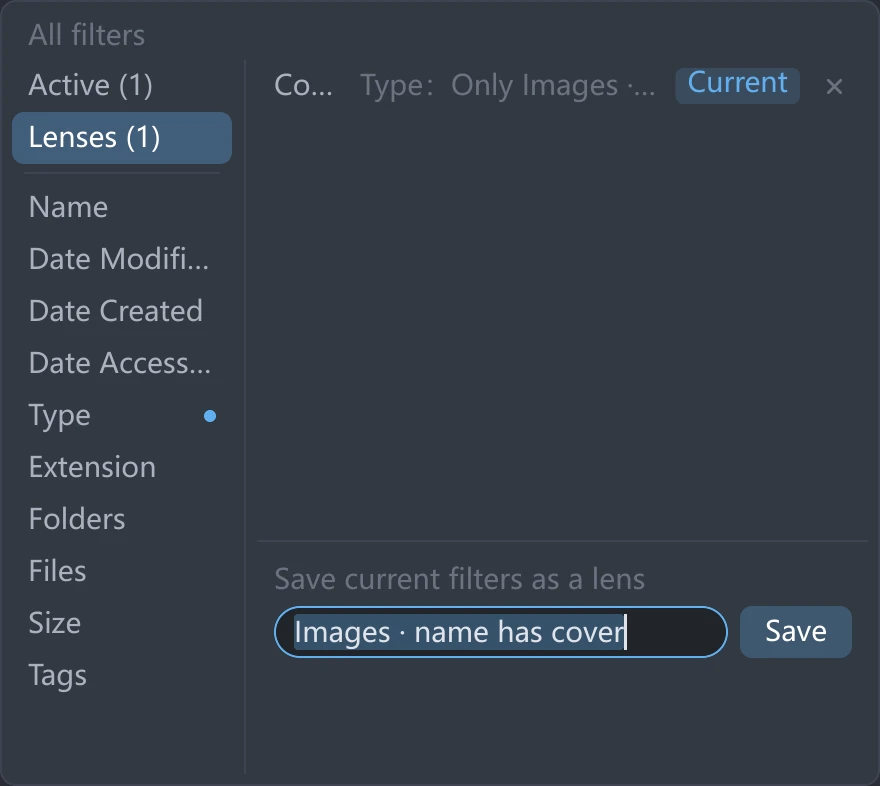
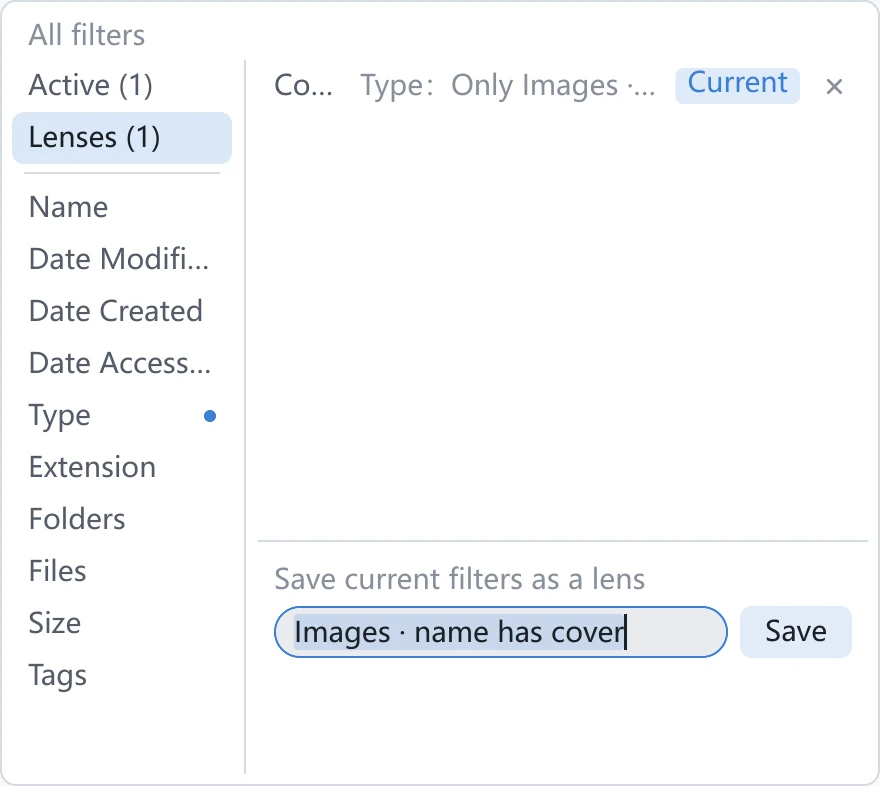
- Open All filters → Active and click Save as lens…, or go directly to Lenses.
- Under Save current filters as a lens, edit the name or keep the automatically generated name.
- Click Save. The lens appears in the list above and remains available after restarting.
| Content | Saved in a lens |
|---|---|
| Funnel conditions for the entire tab | Saved. |
| Footer filter text | Saved. |
| The text's fuzzy, wildcard or regular expression matching mode | Saved when filter text is present. |
| Filters within groups | Not saved. |
| Sort order, grouping and view | Not saved. |
| Current folder location | Not saved. |
Save is unavailable when there are neither global funnel conditions nor filter text. Filters within groups alone cannot be saved as a lens. Saving with an existing name updates that lens's conditions.
Applying and deleting
- Open All filters → Lenses.
- Click the target lens, or hover over it and click Apply. The lens replaces the current global conditions and filter text, and clears all filters within groups.
- To delete a saved lens, click its close button. Its tooltip reads Delete this lens.
A lens whose conditions match the current ones is marked Current. Deleting a lens removes only its saved entry. It does not delete files or clear conditions already applied.
A lens with filter text also restores its matching mode. The footer filter box and sidebar search share this mode, so sidebar search changes along with it. A lens without filter text keeps the existing matching mode.
When temporary conditions are retained
Current conditions are temporary. Saving a lens gives you a set of conditions to apply again; it does not make those conditions apply automatically whenever you open a folder.
| Action | Effect on current conditions |
|---|---|
| Navigate to another folder | Clears footer filter text, global filters and filters within groups. |
| Change the grouping category | Clears filters within groups and keeps global filters. |
| Switch views, refresh or hide a column | Keeps filters. You can still change a hidden column's conditions in All filters. |
| Open another, deeper column in Columns | Keeps filters. |
| Close and restart tessoa | Does not restore current temporary conditions. Saved lenses are retained. |
| Apply a lens in another folder | Filters that folder's contents without returning to the folder where the lens was saved. |
Filtering sidebar search results
The sidebar search box also has a funnel. Click it to set conditions for the current search. The list shows Counts reflect current results below the options, and the results area displays a condition summary.
| Item | Difference from file list filtering |
|---|---|
| Available conditions | Name, date modified, type, extension, size and tags. |
| Type | Filters by groups in File Types only, without the specific types below them. |
| Options in the lists | Name, date, type groups, size and tags can be chosen before searching. Extensions are listed from the current results. |
| Counts | Reflect the current search results and update as results change during a search. |
| Change the search text | Keeps this search's filter conditions. |
| Clear or close search | Clears this search's filter conditions. |
| Lenses | The search filter panel provides no controls for saving or applying lenses. |
Changing conditions starts the search again. To clear search conditions and keep the search text, click the close button at the end of the summary above the results. For search scope and system index settings, see Search and filtering.