
Keyboard shortcuts
This page lists tessoa's default shortcuts. The keys in the tables are the Windows / Linux defaults; on macOS most Ctrl keys become ⌘, and moving around and deleting match Finder — see What is different on macOS.
You can change any of these under Settings → Keyboard Shortcuts, and the mouse buttons and wheel gestures are in the same table — see Mouse buttons and the wheel. For full keyboard control without reaching for Ctrl at all, see Vim mode; Vim's own keys are changed on a page of their own.
Global & Settings
| Action | Default |
|---|---|
| Open Settings | Ctrl+Shift+P |
| Activity | Ctrl+Shift+H |
| New window | Ctrl+N |
| Quit | Ctrl+Q |
Finding & filtering
| Action | Default |
|---|---|
| Filter current folder | Ctrl+F |
| Sidebar quick search | Alt+F |
| Match mode: wildcards | Alt+G |
| Match mode: regular expression | Alt+R |
The two match modes are toggles: press the active mode again to return to fuzzy matching, without needing to focus a box first. Sidebar search and the footer filter share this setting; see Search and filtering.
Typing in the file area also starts filtering, with no Ctrl+F first; and while the filter box is lit, ↑ ↓ PageUp PageDown pick files straight out of the results while Enter hands the keyboard back to the list. See Search and filtering.
Sidebar Vim navigation
With Vim mode enabled, press e to focus the sidebar. The following default keys operate its tabs and panes; see Sidebar for the full guide.
| Action | Default shortcut |
|---|---|
| Previous / next sidebar pane | [ / ] |
| Previous / next page while on a pane's tab strip | h / l |
| Collapse / expand the pane while on its tab strip | Space |
h and l depend on the focused row: they switch pages on the tab strip and still collapse or enter items in a folder tree. Change the sidebar's Vim bindings under Settings → Input → Vim Keys → Sidebar.
Display
| Action | Default |
|---|---|
| Next view level | Ctrl+M |
| Previous view level | Ctrl+Shift+M |
| Toggle preview panel | F3 |
| Toggle sidebar | Ctrl+B |
| Toggle hidden items | Ctrl+H |
| Quick Look | Ctrl+Shift+Space |
| Refresh | F5 |
Cycling the view level applies to the focused pane, unlike holding a modifier and scrolling — the wheel has a position, the keyboard does not, and it has to work with the cursor parked in the sidebar or off the window entirely.
Toggle hidden items flips between the first two tiers only. There are three in all, and the third, Show all, is only selectable on the Visibility page in Settings.
Quick Look is Space out of the box on macOS, needs QuickLook installed on Windows, and does nothing on Linux — see Quick Look.
You will rarely need Refresh: tessoa watches the folders you have open, so the list follows whatever another program does in them. F5 is the manual way out for places that give no system notifications, such as network locations.
Tabs
| Action | Default |
|---|---|
| New tab | Ctrl+T |
| Close tab | Ctrl+W |
| Next tab | Ctrl+Tab |
| Previous tab | Ctrl+Shift+Tab |
| Open in New Tab | Ctrl+Enter |
Navigation
| Action | Default | Notes |
|---|---|---|
| Back | Alt+← | Mouse side button works too |
| Forward | Alt+→ | Mouse side button works too |
| Up a level | Alt+↑ | Backspace on its own too, unless you are typing in a box |
| Open / enter | Enter | |
| Edit path (address bar) | Ctrl+L | Opens the address editor to type a path, see Working with files |
| Cancel / clear checks | Esc |
Two more keys work while the address editor is open, and neither can be rebound: Tab completes the level you are typing, and Alt+Enter opens the path you typed in a new tab.
Selection & files
| Action | Default |
|---|---|
| Select all visible | Ctrl+A |
| Invert selection | Ctrl+Shift+A |
| Check / uncheck | Space |
| Copy | Ctrl+C |
| Cut | Ctrl+X |
| Paste | Ctrl+V |
| Undo | Ctrl+Z |
| New folder | Ctrl+Shift+N |
| Rename | F2 |
| Batch rename | Ctrl+F2 |
| Delete to Recycle Bin | Delete |
| Delete permanently (skip Recycle Bin) | Shift+Delete |
A permanent delete cannot be undone, so it asks you to confirm first. See File operations.
Moving around and extending the selection
| Action | Default |
|---|---|
| Up / down | ↑ / ↓ |
| Page up / page down | PageUp / PageDown |
| Go to first / last item | Home / End |
| Collapse / go up | ← |
| Expand / enter | → |
| Extend selection up / down | Shift+↑ / Shift+↓ |
| Extend selection a page up / down | Shift+PageUp / Shift+PageDown |
| Extend selection to first / last item | Shift+Home / Shift+End |
Paging and jumping both move the cursor and select what it lands on rather than only scrolling — moving the cursor there is the whole point of paging from the keyboard. Each of the four views works out its own step, see File operations.
Mouse buttons and the wheel
The mouse buttons and three wheel gestures sit in the same table as the keys and are changed the same way. To record one, press that button, or hold the modifier and give the wheel one notch.
| Action | Default |
|---|---|
| Primary Select (Pointer) | Left button |
| Context Menu | Right button |
| Middle-Click Smart Open | Middle button |
| Back (Mouse) | Side button 1 |
| Forward (Mouse) | Side button 2 |
| Zoom UI (Wheel) | Ctrl+Shift+wheel |
| Cycle View Level (Wheel) | Ctrl+wheel |
| Scroll Horizontally (Wheel) | Shift+wheel |
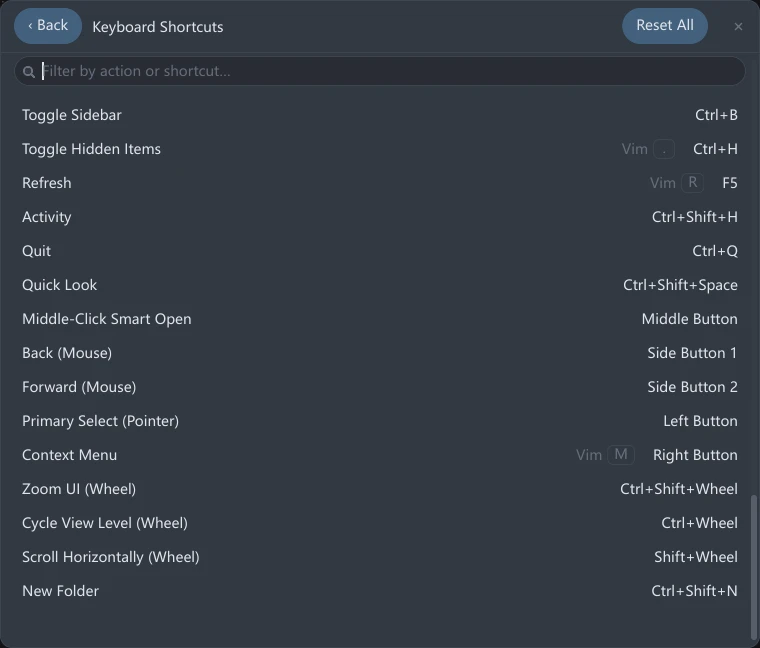
Primary Select (Pointer) is the whole pointer role rather than just "the press": clicking to select, double-clicking to open, dragging, rubber-band selection in empty space, and dragging a tab to a window edge to split all follow that button. Back (Mouse) and Forward (Mouse) are bindings of their own, separate from Alt+← / Alt+→ on the keyboard, so both ways in stay available.
What Middle-Click Smart Open does depends on what the cursor is over: a folder row, a sidebar folder row or a breadcrumb segment opens in a new tab; a tab closes it; a row in Activity or in the bookmark panel goes to that folder.
Wheel gestures have no direction: which way you turn decides whether it adds or subtracts, and that is not part of the binding. That is why the table says Ctrl+wheel rather than "Ctrl+wheel ↑". On macOS the Ctrl in the first two becomes ⌘, see What is different on macOS.
A mouse's third and fourth side buttons may not record at all: on Windows the vendor's driver usually maps them to a keyboard combination, so that combination is all tessoa ever sees. To use such a button, map it to a keyboard combination in the mouse's own driver and bind that combination here.
The wheel over the footer badges is not in this table: that is not a global gesture but "the control under the cursor ate the wheel", see View modes.
Primary Select and Context Menu have to stay on mouse buttons.Without a pointer there is nothing to click or drag with, so neither may be bound to a key or left unbound, and binding another action to the button one of them holds is rejected as well. To move the primary pointer to the middle button, record Primary Select (Pointer) on the middle button first — the left button is only free for other actions after that.
Still mouse-only
| Action | How |
|---|---|
| Split the window | Drag a tab to a window edge and let go |
| Tag files | Drag files onto a tag in the sidebar |
| Bookmark a folder | Drag it onto the sidebar's Bookmarks section |
| Lay out the whole bookmark tree | Right-click the star in the nav bar |
What is different on macOS
| Action | Key on macOS |
|---|---|
| Copy / cut / paste / undo / select all / invert selection | Ctrl becomes ⌘ |
| Open Settings | ⌘+,, as in Finder and System Settings |
| Activity | ⌘+Shift+H |
| Filter current folder | ⌘+F |
| New / close tab | ⌘+T / ⌘+W |
| Open in New Tab | ⌘+Enter |
| Edit path (address bar) | ⌘+L |
| New window | ⌘+N |
| Batch rename | ⌘+F2 |
| Toggle sidebar | ⌘+B |
| Delete | ⌘+Backspace |
| Delete permanently | ⌘+⌥+Backspace |
| Toggle hidden items | ⌘+Shift+. |
| Quick Look | Space, as in Finder |
| Toggle check | ⌥+Space, since Space went to Quick Look |
| Refresh | ⌘+R |
| Back / forward | ⌘+[ / ⌘+] |
| Up a level | ⌘+↑ |
| Quit | ⌘+Q |
| Click to add to the selection | ⌘+click. macOS delivers Ctrl+click to apps as a right-click, so the modifier for adding is ⌘ here |
| Switch tabs | Still Ctrl+Tab, which avoids the system ⌘+Tab |
| Sidebar quick search and the two match modes | Still ⌥+F / ⌥+G / ⌥+R |
| Cycle view level | Still Ctrl+M / Ctrl+Shift+M; ⌘+M belongs to the system's Minimize |
| Zoom UI (Wheel) / Cycle View Level (Wheel) | Ctrl becomes ⌘; Ctrl+wheel belongs to the system's screen zoom |
| Scroll Horizontally (Wheel) | Still Shift+wheel |
| Toggle preview panel | Still F3 |
| Rename | Still F2 |
| Paging and jumping | Same as elsewhere (fn+arrow keys on a laptop) |
Finder uses ⌘+Shift+P for "Show Preview". tessoa's preview panel stays on F3 all the same. If Mission Control has taken F3, pick another key on the Keyboard Shortcuts page.
Changing a shortcut
- Open Settings and go to Keyboard Shortcuts.
- Type in the Filter by action or shortcut… box under the header to narrow the table down. It matches the action name and the key currently bound to it, so you can also ask the question the other way round: what is Ctrl+K bound to?
- Click the row you want to change; the key cell reads Press new shortcut or mouse button… (Esc to cancel · Backspace to unbind), so press the keys you want, press a mouse button, or hold a modifier and give the wheel one notch.
- To clear an action's key, select the row and click Unbind at its end; the row reads Unbound. Backspace while recording does the same. The cost is that bare Backspace itself cannot be bound to an action (it is the fixed alias for going up a level); modified combinations still record.
- To put one binding back the way it shipped, click Default at the end of that row.
- To put everything back, use Reset All on that page. It raises Defaults restored: Keyboard Shortcuts with an Undo button that puts the whole table back the way it was.
An action with no key assigned reads Unbound. Changes are saved automatically and still apply after a restart.
Default only appears on rows that differ from the factory binding, which makes it the marker for "I changed this one" — with nearly sixty rows, spotting them by eye is not realistic.
Every row also carries one more cell, prefixed Vim, drawing the key sequence the same function has on the Vim Keys page. Clicking it jumps there and highlights the row; when the other side has no such function the cell is not drawn. See Vim mode: The peer key column.
When a shortcut clashes with a Vim key
When the same key is bound to different functions on this page and on the Vim Keys page, the entry here never fires while Vim mode is on. A bar then appears under the header reading N shortcuts clash with Vim keys — they will not fire while Vim mode is on, and on each clashing row the button reads Yield in a warning color: clicking it gives the key up to the Vim table by removing this page's binding. Whichever page you click Yield on is the page whose binding is removed.
When the key you pressed cannot be used
A line of red text under that row says why, and the row stays in recording mode — press something else instead, rather than pressing Esc and clicking the row again.
| What you pressed | What the page says |
|---|---|
| A button already held by the primary pointer or the context menu, including combinations such as Ctrl+left button | That button is reserved for selection / context menu |
| A key for Primary Select (Pointer) or Context Menu | Pointer roles must be bound to a mouse button |
| Anything but the wheel for one of the three wheel gestures | Wheel gestures must be bound to the wheel |
| The wheel with no modifier held | The bare wheel cannot be bound (it is the root of list scrolling) |
| Unbinding Primary Select (Pointer) or Context Menu | Selection / context menu cannot be unbound (nothing would be clickable) |
The second to last is there because the wheel with no modifier is list scrolling — binding it away would leave the list unable to scroll. The last works the same way: those two rows do not even draw an Unbind button.
If the key you pick is already used by something else, the new binding takes effect and the old action is left without a key — that row reads Unbound and gains a Default button of its own to put it back.
Vim mode · Settings overview · File operations · Activity · Tabs & split panes