
Vim mode
Vim mode is tessoa's full-keyboard control scheme: turn it on and, whenever no text box has focus, letter keys stop being typing and become commands — j and k move the cursor, l enters a folder, y copies. If you have used Vim or yazi you can start straight away; this page also lists the whole keymap — the keys in the tables are the factory defaults, and every one of them can be changed, see Changing the Vim keys.
This page assumes you have already turned the switch on. If not, press Ctrl+Shift+P for Settings and find Vim Mode (j/k navigation) in the Input group.
Knowing which keys are in charge
With the switch on, a small badge sits in the bottom-right corner of the window showing the current state:
| Badge | Meaning |
|---|---|
| NOR | Normal state; letter keys are commands |
| VIS | Visual mode; moving the cursor extends the selection |
| SIDE | Focus is in the sidebar, using the sidebar's own keys |
| FIND | The cursor is in a filter or search box, so typing is typing |
Press a prefix key such as g, w, ,, or \ and the badge echoes what you have pressed so far while a small overlay lists the keys that can follow. The overlay is titled with the key you just pressed plus next key, and each row says which key comes next and what it does. If you forget what comes next, wait for it to appear.
At any point ? brings up the full Vim Key Reference panel. Press ? again, press Esc, or click anywhere to close it.
Navigation & history
| Key | What it does |
|---|---|
j / k | Cursor down / up. Takes a count, so 5j moves five rows down |
h / l | Go up a level / enter a folder or open a file |
gg / G | Jump to the top / bottom. 12G goes to row 12 |
J / K | Half a page down / up, the same as Ctrl+D and Ctrl+U |
H / L | History back / forward |
gh | Go to your home folder |
gr | Open the history dropdown in the nav bar: j/k to pick, Enter to go, Esc to close |
i | Edit the path: opens the address editor, Tab completes the next level, Enter goes there |
When H takes you back to a folder you have visited, the cursor lands on the row you had selected when you left it, not back at the top. Pressing h to go up a level puts the cursor on the subfolder you just came out of.
While the history dropdown is open, counts and jumps such as gg, G, and 5j still work — they apply to the list in the dropdown.
Selecting & file operations
| Key | What it does |
|---|---|
Space | Check the current item and move down a row. When Space belongs to Quick Look (as it does out of the box on macOS), the factory sequence for this one is \ Space |
v | Enter visual mode; moving the cursor extends the selection. v again commits, Esc cancels |
| Ctrl+A | Select all / none |
y / x / p | Copy / cut / paste |
d | Delete to the Recycle Bin; u undoes it |
u | Undo |
m | Rename |
a / A | New file / new folder. Either one drops straight into renaming it |
t | Open the tags menu; type to filter, Enter to toggle |
M | Open the context menu — the file menu when the cursor is on a row, the background menu when it is not |
a makes a file and A makes a folder; both create it under a default name first and then let you rename it in place.
Panes & tabs
| Key | What it does |
|---|---|
wv / ws | Split right / split down. Focus lands in the new pane |
w then h j k l | Move pane focus in that direction |
wq | Close the current pane |
gt / gT | Next / previous tab |
gn | New tab |
go | Open the folder under the cursor in a new tab, see Open in a new tab |
gc | Close the current tab |
gC | Close the other tabs |
gH / gL | Close the tabs to the left / right |
Closing tabs sits under the g prefix alongside gt and gn — they all change which tabs are on the bar. The four keys match the menu you get by right-clicking a tab one for one, see Tabs & split panes.
View & display
The z prefix covers what the list looks like, matching the cluster of buttons at the bottom right:
| Key | What it does |
|---|---|
zd / zi / zc / zg | Switch straight to Details / Icons / Columns / Gallery |
zz | Cycle through the four views, wrapping around at the end |
+ / - | Zoom one step in / out within the current view. Takes a count, and repeats if you hold it |
= | Back to the default step |
ze | Recursively expand every subfolder of the current folder |
zD / zF | Show or hide folders / files |
zp | Open or close the detail panel on the side |
+ and - only move through the steps of the view you are in and stop at either end; they never cross into another view — switching views is what zz and the zd family are for.
Find, sort & miscellaneous
| Key | What it does |
|---|---|
/ | Focus the filter box and filter the current list |
\g / \r | Match mode: wildcards / regex. Press again for fuzzy, see File operations |
: | Open Settings |
, then n s m r | Sort by name / size / modified date / reverse the direction |
,d | Cycle through Mixed, Folders first, and Files first |
,g | Turn grouping off and on, coming back to whichever key you last grouped by |
. | Show or hide hidden files |
R | Refresh the current folder, the same as F5. Folder sizes already worked out are kept |
! | Open the current folder in a terminal |
? | Open the key reference panel |
| Esc | In order: clear a half-typed key sequence → leave visual mode → clear the filter → clear checks |
Pressing the same sort key a second time flips the direction, matching what clicking a column header does.
Refresh takes the uppercase R: lowercase r is already the second key in ,r (reverse the sort) and \r (regex mode), and giving bare r an action of its own would make "what does r do" depend on whether you happened to press a prefix key first.
The sidebar (SIDE)
Press e to hand focus to the sidebar. The badge changes to SIDE and a different set of keys applies. Press e again to leave and collapse the sidebar. From the leftmost pane, pressing w then h and running out of panes also lands you there.
| Key | What it does |
|---|---|
e | Enter the sidebar; when already there, leave and collapse the panel |
j / k | Move up and down, counts supported |
J / K | Half a page down / up |
{ / } | Previous / next section |
| [ / ] | Focus the current page header in the previous / next pane, stopping at either end |
g then l r b t s p | Go straight to Layouts / Recents / Bookmarks / Tags / Storage / Places |
go | Open this row's folder in a new tab — the same key as in the file area |
l / h | On a folder row, expand or open / collapse or go up; on a header, select this pane's next / previous page |
Space | On a parent row, fold or unfold its children; on a header, collapse or expand the whole pane |
m / M | Rename in place / open this row's menu |
a / A | Create in this section / create a child |
d | Delete or remove — the same action as Delete in the row menu |
c / L | Recolor a tag / lock or unlock a layout |
/ | Sidebar quick search. Pressing Esc returns to the list and keeps the results |
\g / \r | Match mode: wildcards / regex. The same mode as in the file area |
| Esc | In order: close in-place editors → clear the query → leave the sidebar (the panel stays open) |
w then h j k l | Move focus back to the file area |
For mouse controls, see Sidebar & component pages. A section header is the current component page's title in the tab strip. Switching pages with h / l leaves a collapsed pane collapsed; press Space to expand it. Folder-row tree controls are unaffected.
While focus is in the sidebar, unbound letter keys are swallowed rather than falling through to the file area.That is deliberate: otherwise you would think you were working in the sidebar, press p out of habit, and paste the clipboard into the current folder — which is troublesome to undo. Ctrl combinations are unaffected and keep working.
Changing the Vim keys
Vim's keys can be rebound one by one, on a settings page of their own. A switcher at the top splits it into three tables — File area, Sidebar, and Command palette: the first two are the two key sets above, and the third covers Normal-mode movement inside the settings panel (j/k, descend, ascend and so on). Each table is changed on its own and none affects the others; Ctrl+1/2/3 also switch tables, and switching clears the filter text.
- Open Settings and click Vim Keys in the Input group.
- Type in the Search commands or key sequences box to find the command you want.
- Click that row; the key cell reads Press the key sequence… (Esc to cancel · Backspace to unbind).
- Press the first key. To make it a single-key command, press Enter to confirm; to make a two-key sequence (like
ggorwv), just press the second key and it takes effect there and then. - Pressed the wrong thing? Backspace steps back one: it drops the first key if you have recorded one, and unbinds the row if you have not. Esc cancels the whole recording.
- To clear a command's key sequence, select the row and click Unbind at its end; the row reads Unbound.
- To put one binding back the way it shipped, click Default at the end of that row; to put a whole table back, use Reset All — it only resets the table on screen, and raises Defaults restored: Vim Keys · 〈table〉 with an Undo button on it.
Commands are laid out in seven groups — Move, Navigate, Select, File actions, View & sort, Panes & tabs, Other — in the same order as the ? cheat sheet. The key cell draws one or two key caps, because gg means pressing g twice rather than one chord; the gap between the caps is what says so.
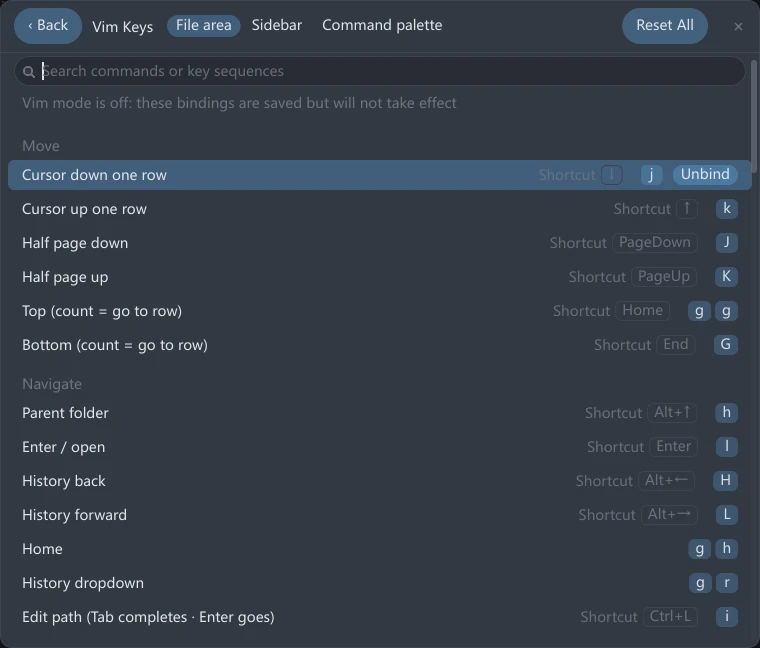
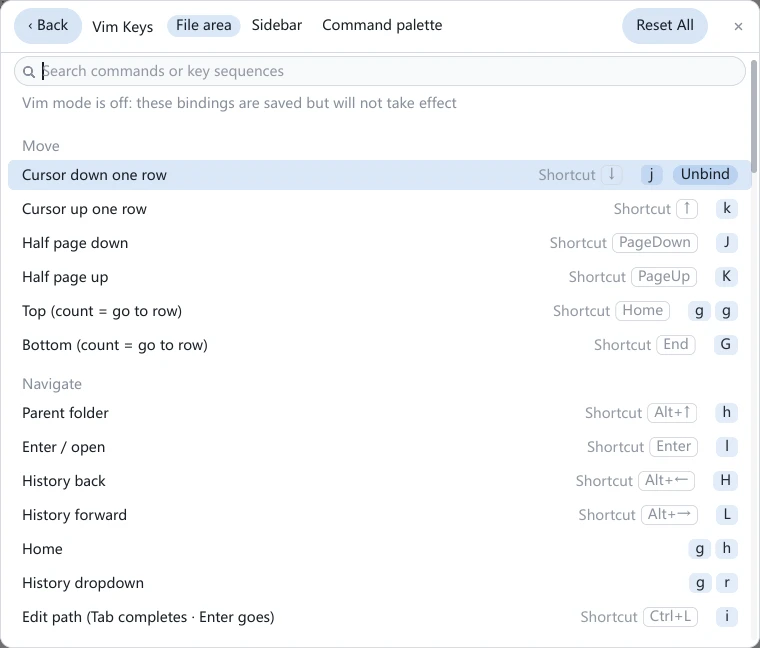
g g — two presses, not one chord. The hollow caps prefixed Shortcut on each row are the same function's binding on the shortcuts page; the dimmed line at the top only shows while Vim mode is off.Afterwards the ? cheat sheet and the prefix-key overlay show whatever you set, with no restart needed.
The page works with Vim mode switched off. A line at the top then reads Vim mode is off: these bindings are saved but will not take effect — getting the keys the way you want them before turning the switch on is a natural order to work in.
Keys that cannot be bound
When a key is rejected, a line of red text under that row says why and the row stays in recording mode, so you can press something else instead.
| What you pressed | What the page says |
|---|---|
| A digit, in the first key's position | Digits are reserved for count prefixes (e.g. 3j) |
| ? | ? is reserved for the cheat sheet |
| A key that already starts a two-key sequence, while pressing Enter to confirm it as a single key | Already the first key of a sequence — cannot also be a single-key command |
| A key that is already a single-key command, while using it to start a sequence | Already a single-key command — cannot also be a sequence prefix |
The last two are two sides of one thing: a key either runs on the press or waits for a second key, never both — otherwise one of the two would never get its turn.
Binding a sequence another command already holds is not rejected: that command gives way and reads Unbound, the same rule as on the Keyboard Shortcuts page.
The peer key column
Every row of the file-area table has one more cell, prefixed Shortcut, drawing what the same function is bound to on the Keyboard Shortcuts page — whether pressing y is the same as pressing Ctrl+C can be read off this cell. Clicking the cell jumps to the shortcuts page and highlights that row; when the other side has no binding it reads Unbound, and clicking still takes you there to add one. The shortcuts page carries the symmetric column, prefixed Vim.
Chord entries
At the bottom of the file-area table sits a group of its own, Chord entries (Ctrl allow-list): Ctrl+D (half page down), Ctrl+U (half page up), and Ctrl+W (the window prefix). These are second entrances to existing commands and cannot be rebound — they are listed so you can see who owns each chord right now:
| The row draws | Meaning |
|---|---|
| Solid key caps | The chord belongs to Vim; pressing it runs the command in the table |
| Hollow key caps, with Shortcut "××" wins beside them | A global shortcut holds it, and Vim does not receive the chord. Clicking Unbind shortcut at the end of the row unbinds that shortcut and hands the chord back to Vim |
| Hollow key caps, with Split right is no longer a two-key sequence — this chord is inactive | You changed the first key of the wv family, so Ctrl+W no longer recognizes the prefix and passes through untouched |
The consequence of Unbind shortcut is written in its name: the shortcut holding the chord (Close Tab, out of the box) loses its key.
How this relates to the normal shortcuts
Vim mode only takes over bare letter keys while no text box has focus. Two things follow from that:
- While the cursor is in the filter box, a rename box, or a search box, typing is typing, and input methods work normally.
- Keys the engine does not recognize pass straight through to the normal shortcuts. So Ctrl+T, F2, and Delete keep working, and turning Vim mode off puts everything back exactly as it was.
The other way round, when the same key is bound to different functions on both sides, Vim takes precedence: with Vim mode on, that shortcut never fires. Both key pages point such clashes out — a bar under the header counts them, and on a clashing row the button reads Yield; clicking it gives the key up to the other table. Whichever page you click Yield on is the page whose binding is removed.
The Vim keys are not changed on the Keyboard Shortcuts page: that page covers the Ctrl-style combinations and the mouse buttons, while Vim's keys live on the Vim Keys page, see Changing the Vim keys.
Keyboard shortcuts · Tabs & split panes · Bookmarks · Settings overview