
Image preview
Image preview decodes an image file and draws it straight into the preview area. This page covers which formats are supported, where else an image can come from, how to zoom and rotate, and which images tessoa deliberately does not show.
Supported formats
| Format | Extensions |
|---|---|
| PNG | .png |
| JPEG | .jpg, .jpeg |
| GIF | .gif (first frame only, animation is not played) |
| BMP | .bmp |
| WebP | .webp |
| TIFF | .tif, .tiff (multi-page files show the first page) |
| SVG | .svg, .svgz, drawn as an image rather than as source |
| Icons | .ico (the largest frame in the container is picked automatically) |
This is also the range used for list thumbnails and folder peek images — if it can be previewed, it gets a thumbnail.
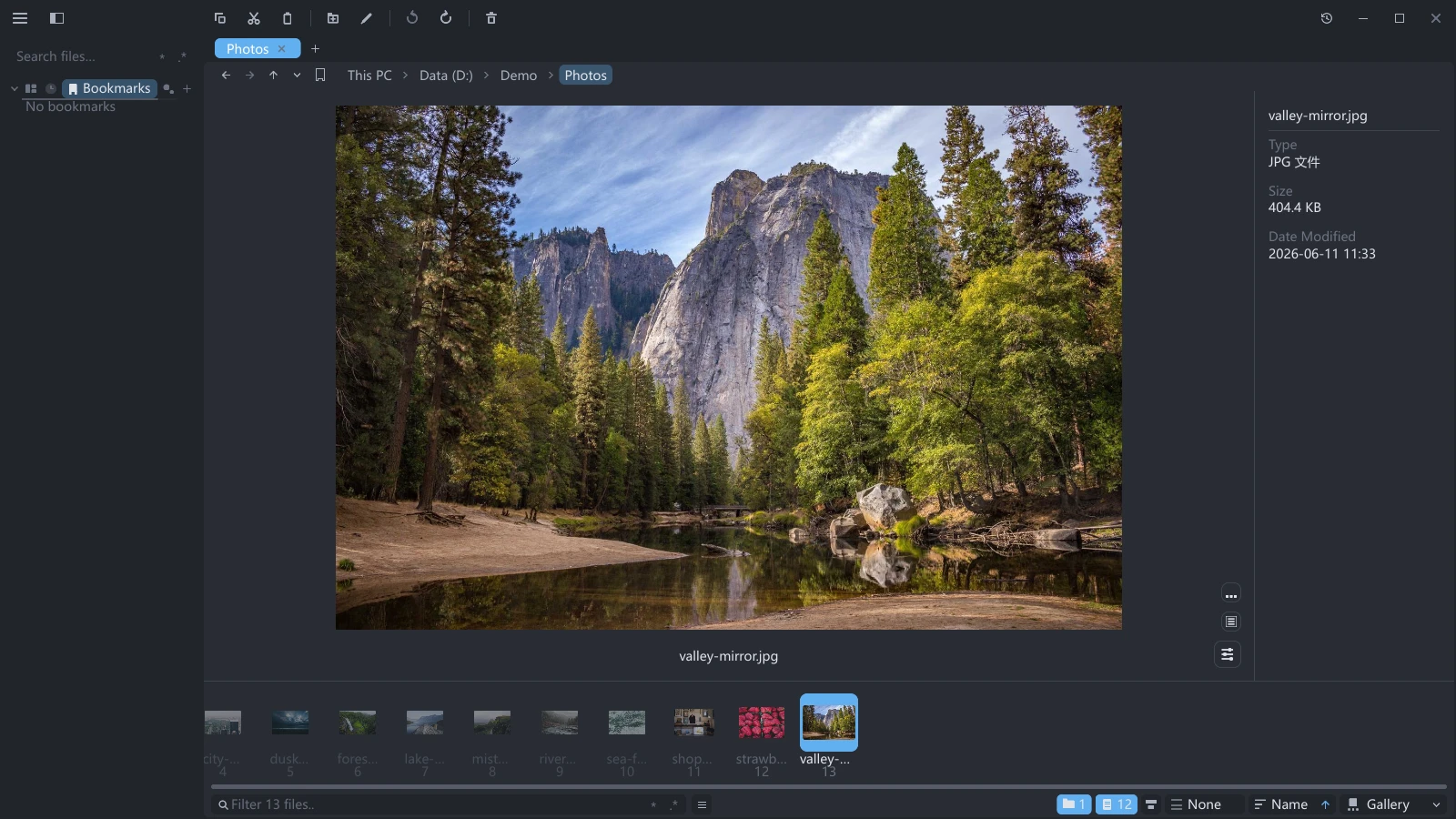
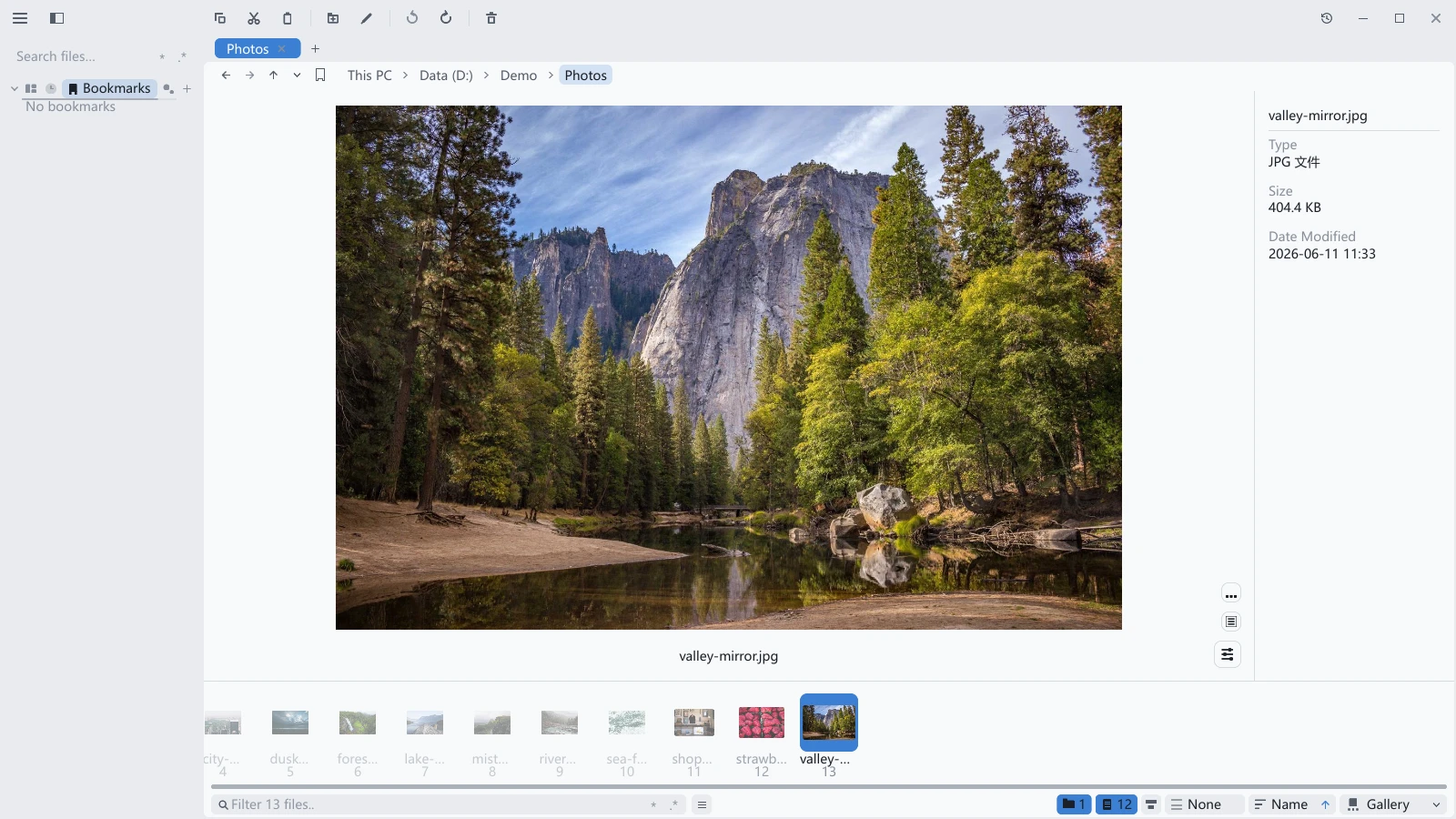
Cover art and system thumbnails
Two kinds of file are not images themselves, yet still have something to show in the preview area and in thumbnails:
| File | Where the image comes from |
|---|---|
Audio: .mp3, .flac, .m4a, .m4b | The cover art embedded in the file. When several images are stored in one file, the one marked as the front cover wins; otherwise the first one is used |
Everything else: .psd, .ai, .dwg, video, camera RAW… | A thumbnail asked of Windows. Anything that has a thumbnail in File Explorer has one here — the very same image |
The second kind exists on Windows only, because those images are produced by the software that handles the format (Photoshop, AutoCAD and so on); without it installed there is nothing to fetch. macOS and Linux have no equivalent, and those files show a file icon there.
Zoom and rotate
| Action | How |
|---|---|
| Zoom in / Zoom out | Click the matching button on the preview |
| Move around after zooming | Drag on the image |
| Rotate left / Rotate right | Click the matching button; only the preview turns |
Zooming and rotating are never written back to the file. Move to another file and back and the orientation is as it was — tessoa does not touch your photos.
Which images are not shown
These fall back to a file icon on purpose, not because something went wrong:
- HEIC: the format iPhones shoot in; not supported yet.
- Images with too many pixels: past 128 megapixels of width × height tessoa falls back to an icon.
Once it is settled that there is nothing to show, a line reading No preview for this file type appears under the icon. It is not written while decoding is still going on, because the answer isn't in yet.